How do I add stickers or a charm to a skin in the 3D viewer?
0:14 · no sound
In the 3D viewer’s panel, search a sticker by name, pick it, choose its position, then open its row to set Scrape and Rotate. A charm is added the same way from the Charm section.
Before you start
- A desktop browser.
Step by step
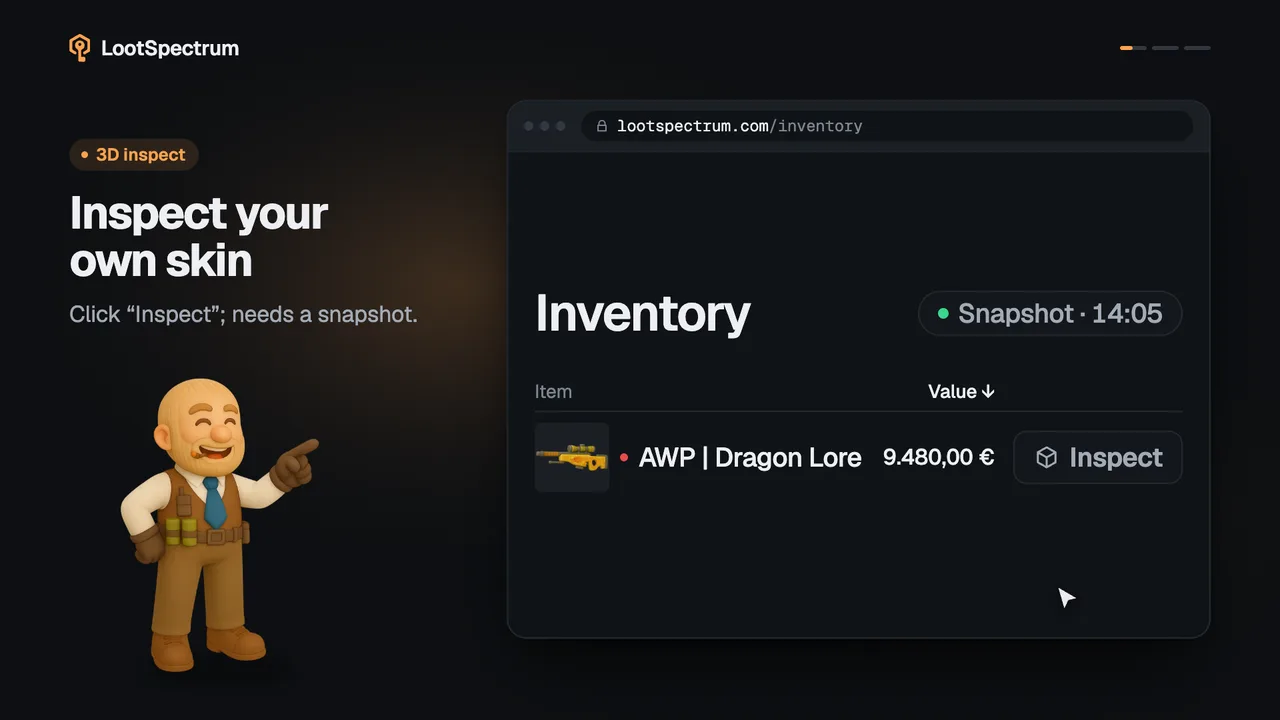
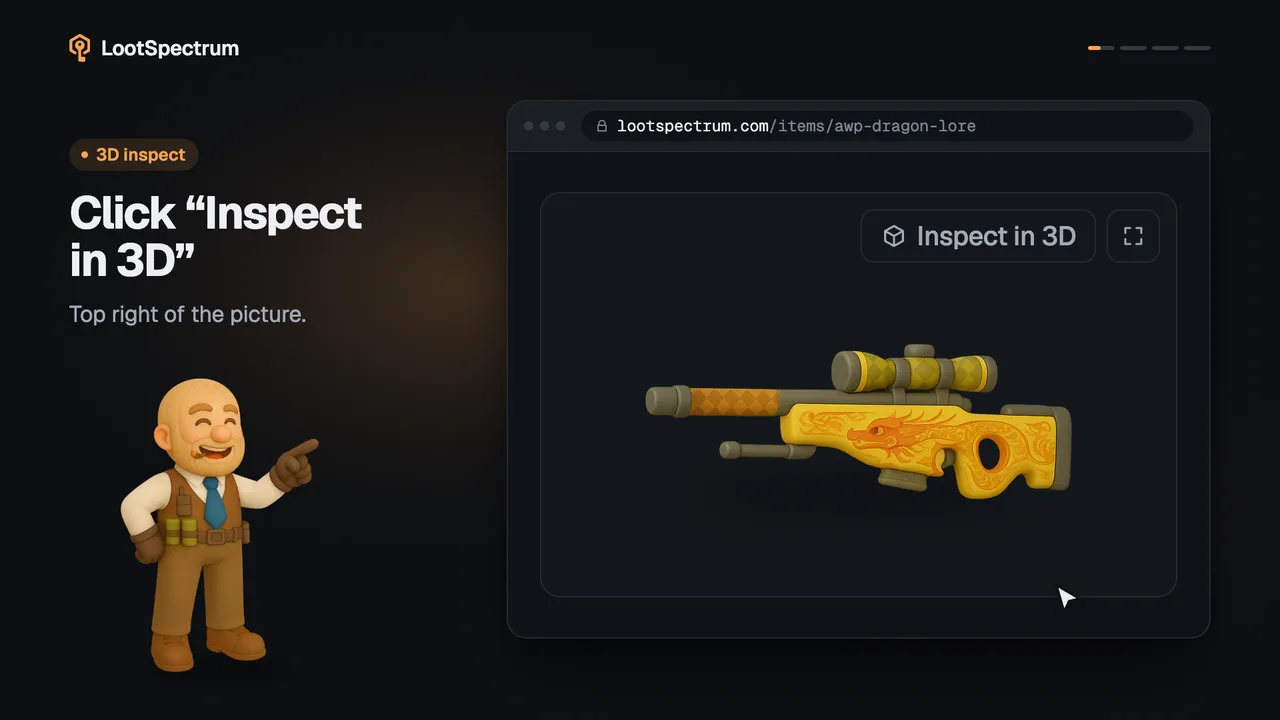
- Open the 3D viewer with “Inspect in 3D” on the item page.
- In the panel’s Stickers section, type at least two characters into “Add a sticker…” and click the sticker you want.
- Choose where it goes with the position menu next to its name, from “Pos. 1” upwards.
- Click the sticker’s name to open its “Scrape” and “Rotate” sliders and set how worn it looks and how it is turned.
- Add more stickers the same way, up to five, or click “×” to remove one.
- To hang a charm, type into “Add a charm…” in the Charm section and click the one you want.
Good to know
- A weapon takes up to five stickers, shown as a counter such as 0/5, and one charm.
- The search starts after two characters.
- The Stickers section appears only for weapons that have sticker positions in the viewer; knives and gloves show none.
- How many positions exist depends on the weapon, so the position menu lists only the ones this weapon has.
- The Charm section appears only for weapons that can carry a charm. A weapon without a charm position shows the note “This weapon has no charm position in the 3D release.”
- A sticker or charm the viewer does not hold yet stays in the list but is left off the weapon, with a note saying so.
- “Scrape” is how worn the sticker looks, from 0 % to 100 %; “Rotate” turns it between −180° and 180°.
Transcript
- 0:00Add a sticker. Search it in the 3D viewer.
- 0:03Choose a position. Each weapon has its own slots.
- 0:06Scrape and rotate it. Click its name for sliders.
- 0:09Hang a charm too. Search “Add a charm…”.