How do I preview a specific float, pattern or Doppler phase in 3D?
0:14 · no sound
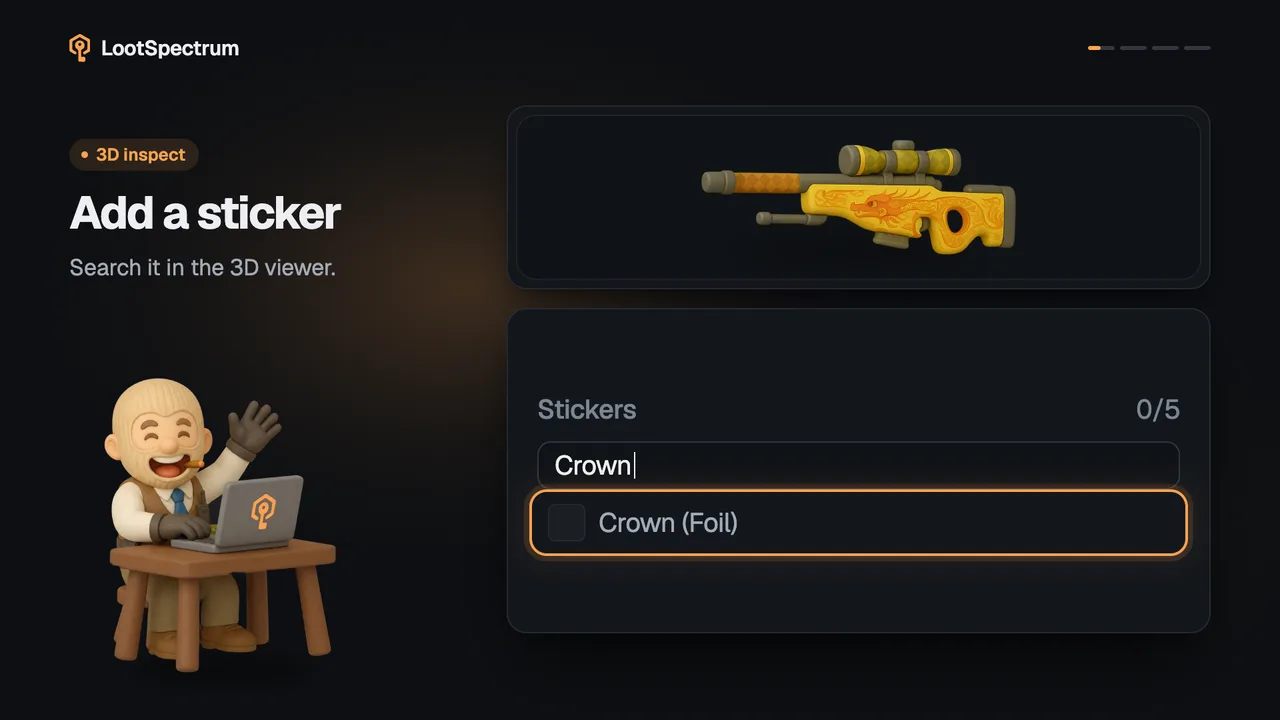
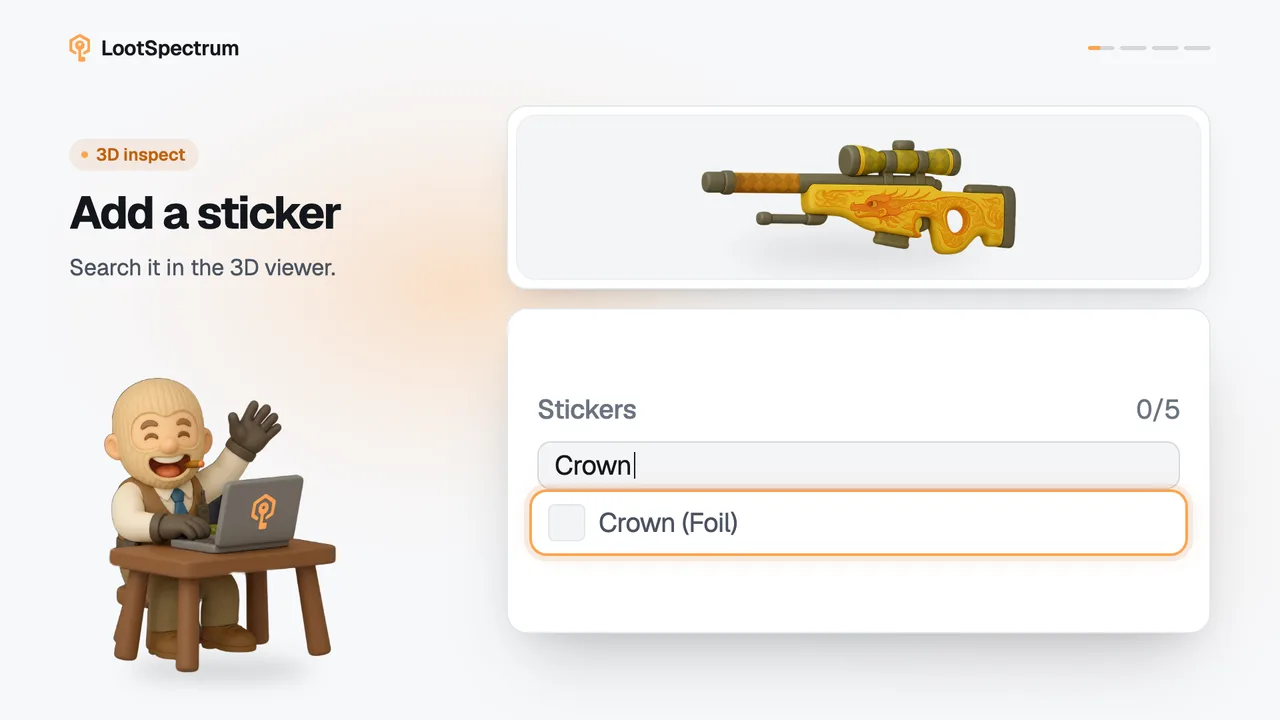
In the 3D viewer's panel, type a float or drag the slider, set a pattern seed from 0 to 1000, and pick a phase if the item has them. “Copy link” keeps the look you built.
Before you start
- A desktop browser.
Step by step
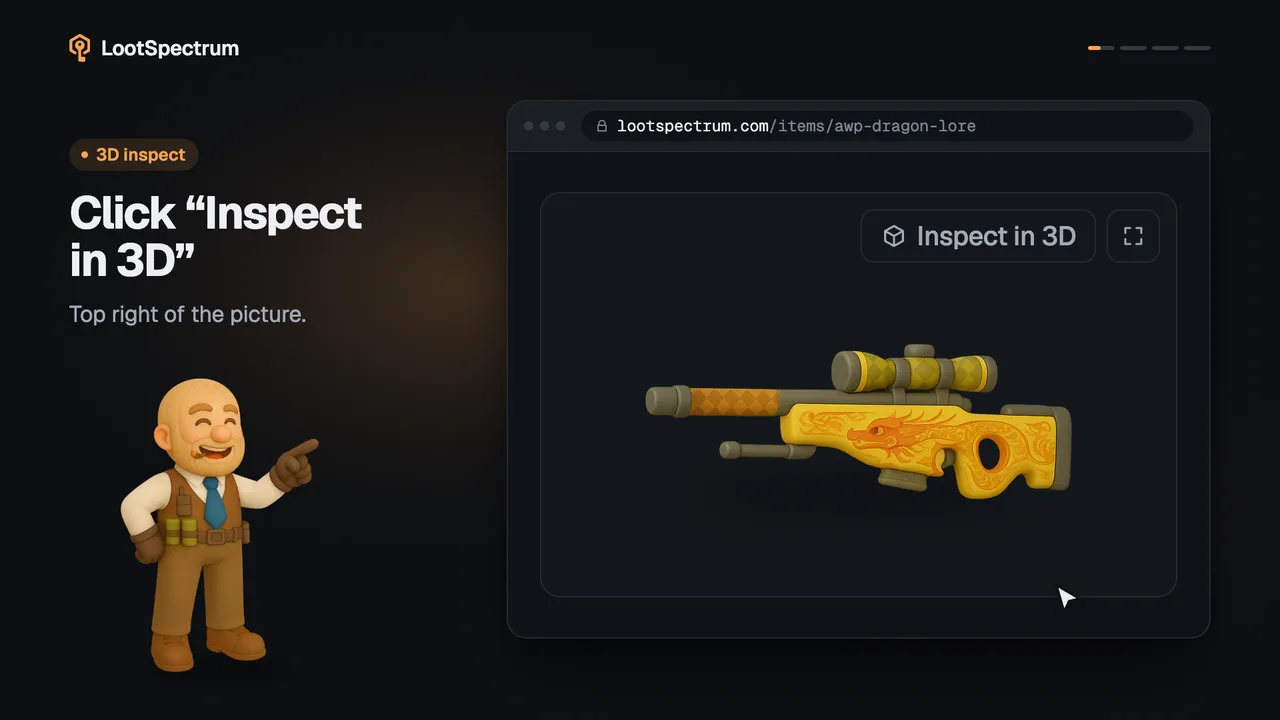
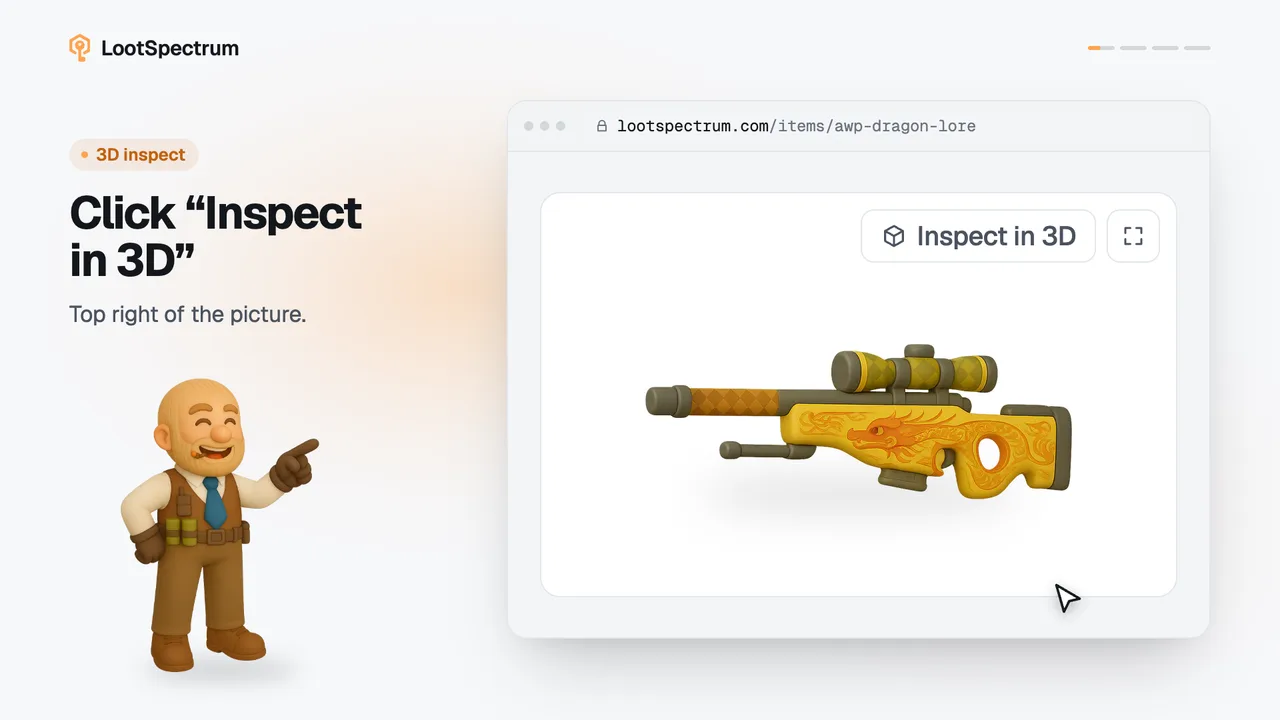
- Open the 3D viewer with “Inspect in 3D” on the item page; the controls are in the panel on the right.
- Under Float, type a value, drag the slider or click a wear (FN, MW, FT, WW or BS); the skin on screen follows.
- Under Pattern seed, type a number from 0 to 1000, step with “−” and “+”, or click “Randomize”.
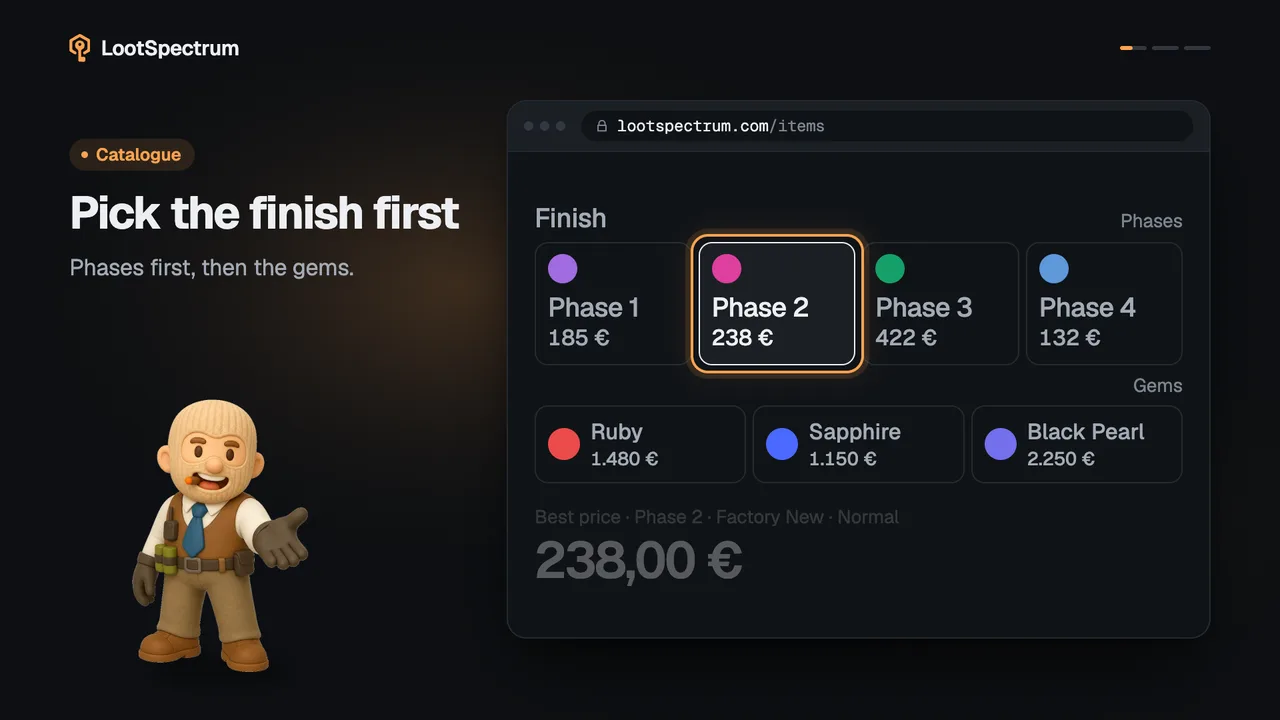
- If the item has phases, pick one under Phase, such as “Phase 2”.
- Click “Copy link” and wait for “Link copied.”; the link keeps the float, pattern seed and phase you set.
- Click “Reset” to go back to the look the viewer opened with.
Good to know
- Open the viewer first with “Inspect in 3D” on the item page; this clip starts from the open viewer.
- The float is kept inside the finish's real range: a typed 0.9 on a skin that runs from 0.00 to 0.70 is moved into range.
- Wears the skin cannot reach are greyed out and cannot be clicked.
- Switching phase can move the float into the new finish's range; the panel then says “The float was moved into this finish's range.”
- Vanilla knives have no Float or Pattern seed section, because there is no finish for them to change.
- The pattern seed changes how only some finishes look; for others the picture stays the same.
- The Phase section appears only for items that have more than one finish to pick from.
- “Reset” restores the state the viewer opened with, including a link's float and seed.
- If the browser blocks copying, the panel says “Couldn't copy the link.”
Transcript
- 0:00Set any float. In the 3D viewer's panel.
- 0:03Try another pattern. Seed from 0 to 1000.
- 0:06Switch the Doppler phase. Only where phases exist.
- 0:09Copy link keeps your look. Float, pattern and phase.