How do I open the 3D viewer, and why is there no “Inspect in 3D” button?
0:14 · no soundDesktop only
On a skin's item page, click “Inspect in 3D” at the top right of the item picture. It works in a desktop browser only, and the button appears only for skins that have a 3D model.
Before you start
- A desktop browser.
Step by step
- Open the page of a skin on a desktop browser.
- Click “Inspect in 3D” at the top right of the item picture, beside the “Full screen” button.
- Drag the skin to turn it, scroll the wheel to zoom, and double-click to reset the view.
- Use the buttons under View for set angles, and the Backdrop list to change the scene behind the skin.
- Close the viewer with “Close” or the Esc key to return to the item page.
Good to know
- “Desktop” means a browser window at least 1024 px wide and a mouse or trackpad; a narrow desktop window gets the grey “3D on desktop” chip instead of the button.
- The “3D on desktop” chip appears only for items that have a 3D model. An item without one shows no button and no message, on any device.
- Besides dragging and the wheel, the arrow keys turn the skin, plus and minus zoom, R resets the view and F toggles full screen. There is no panning.
- The View buttons jump to “Side A”, “Side B” and “Top”, and “Reset view” returns to the start. “Auto-rotate” stays off while your system asks for reduced motion.
- “Backdrop” switches between “Studio” and map scenes, and it is shown only when the viewer offers backdrops.
- The StatTrak counter and name tags are not shown, and the viewer notes: “Reconstructed from CS2 game files. Lighting differs from in-game.”
- Sticker items have their own button and a simpler viewer with a “Scrape” slider.
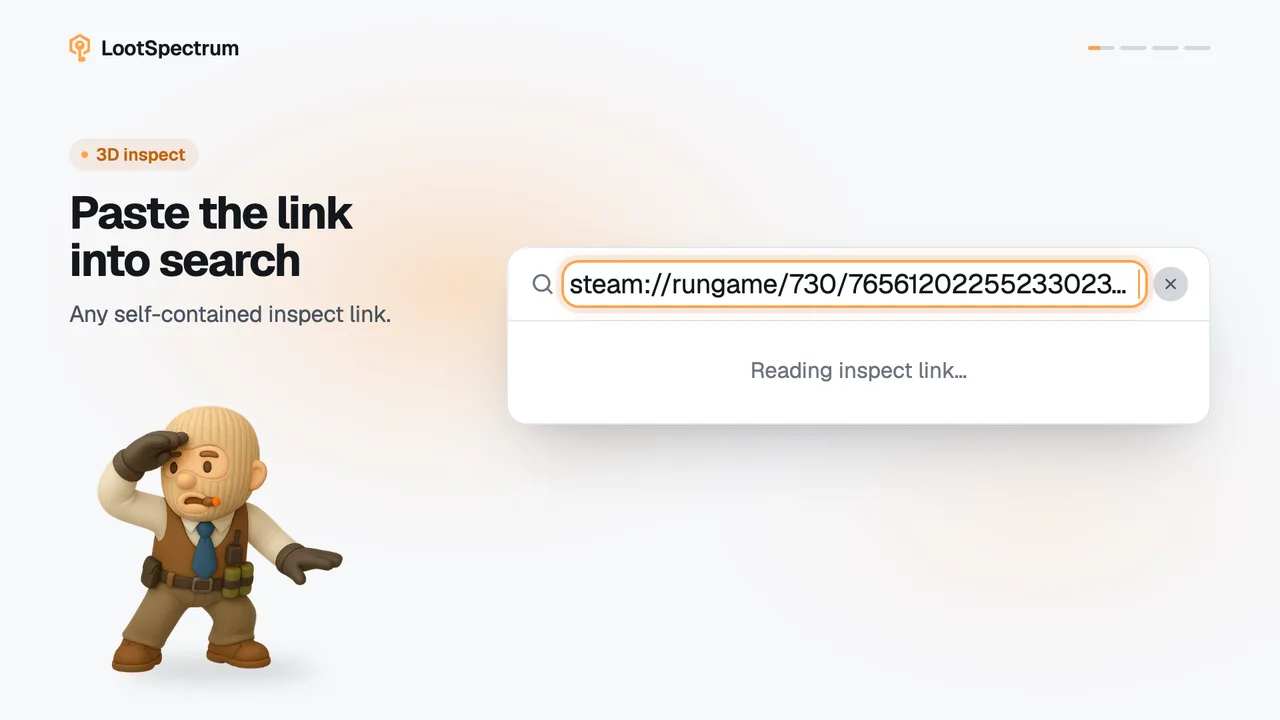
- A shared link that carries the inspect marker opens the viewer directly, on desktop.
How do I rotate, zoom and change the backdrop in the 3D viewer?
Drag the skin with the mouse to turn it, and scroll the wheel to zoom in and out. Double-click the picture to go back to the starting view. With the picture focused, the arrow keys turn the skin, plus and minus zoom, R resets and F toggles full screen. The view cannot be panned.
In the panel, the buttons under View jump to “Side A”, “Side B” and “Top”, “Reset view” returns to the start, and “Auto-rotate” spins the skin by itself. Auto-rotate is unavailable while your system asks for reduced motion.
Under Backdrop, pick “Studio” or one of the map scenes from the list. The list is shown only when the viewer offers backdrops.
The 3D viewer shows an error or says my browser can't run it. What now?
Read the message in the viewer area. If it says the 3D assets could not be downloaded, rendering failed or the graphics context was lost, click “Try again”. If it says the skin needs a newer viewer, reload the page.
“This browser or device can't run the 3D viewer: WebGL 2 is unavailable.” means this browser or device cannot run the viewer, and there is no retry for it. Open the item in another browser or on another computer.
Transcript
- 0:00Click “Inspect in 3D” Top right of the picture.
- 0:03Drag to turn, wheel to zoom. Double-click resets.
- 0:06Desktop only. Phones show “3D on desktop”.
- 0:09No button, no 3D model. Not supported yet.