How do I read an item page?
0:14 · no sound
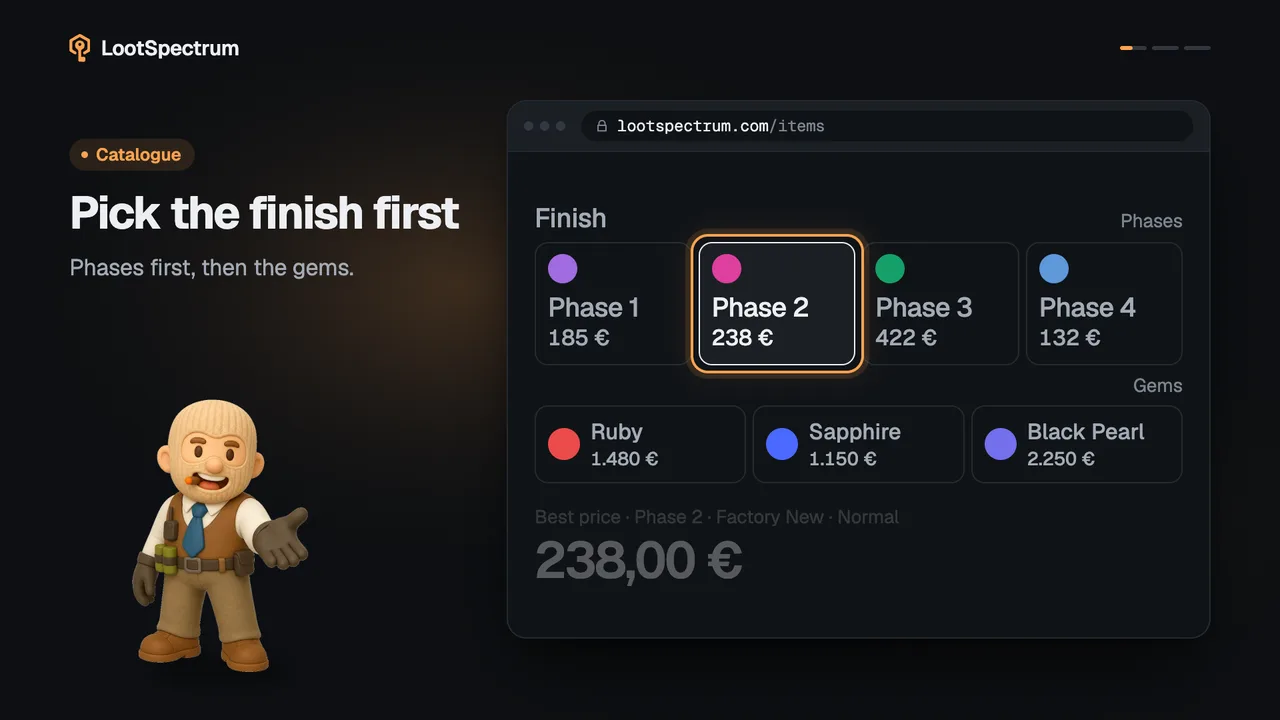
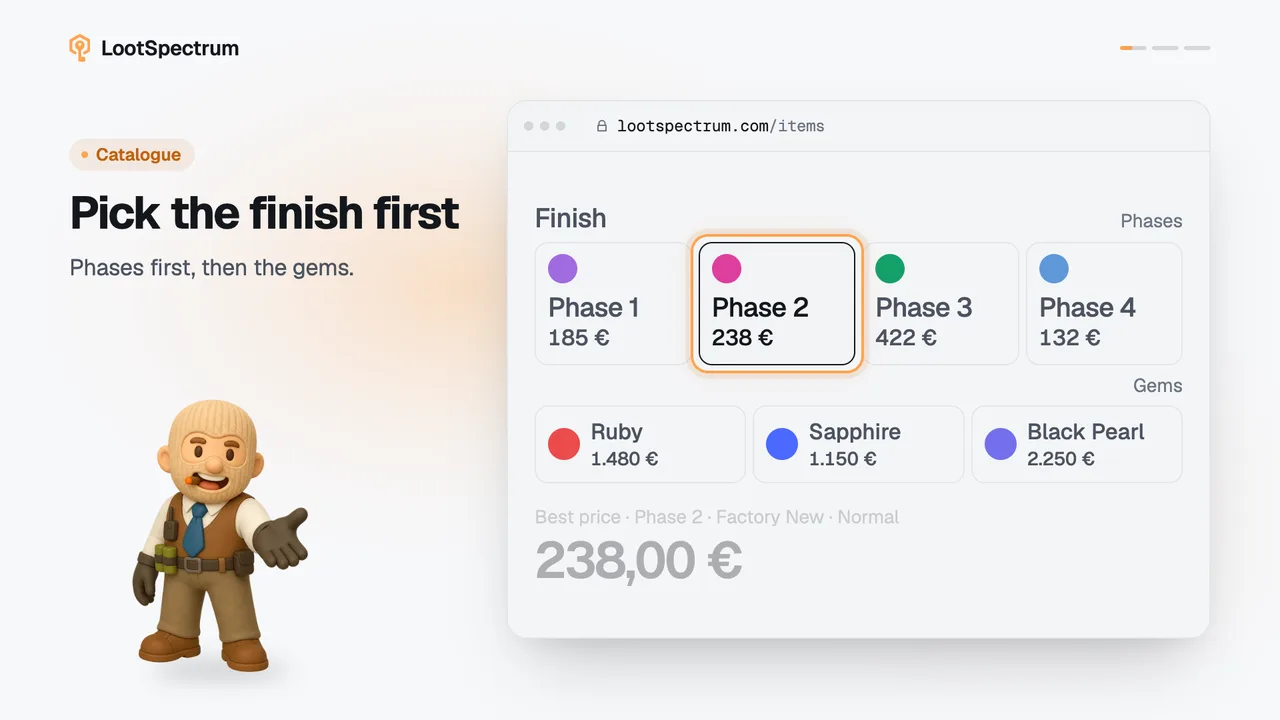
The big price on an item page is the cheapest listing across all tracked markets for the quality and wear you pick. The list shows what each market asks, and the float range shows which wears exist.
Step by step
- Read the large price at the top right: “Best price” is the cheapest listing across all tracked markets for the condition shown in the line above it.
- Under “Condition”, pick the quality (“Normal” or “StatTrak™”, only those the item has) and then the wear chip: FN, MW, FT, WW or BS. Each chip shows its cheapest price.
- Read the list of markets below: each row shows what that market asks, the cheapest is marked “Best”, and the others show how much dearer they are as “vs best”.
- Open “Details” and read “Float range”: the coloured parts of the bar are the wears this skin can have, and the grey parts cannot exist for it.
Good to know
- A wear with no listing shows “—” on its chip, and the price block says “No listings tracked for this condition yet.”
- The quality switch and the wear chips appear only when the item has more than one; cases and stickers have no condition picker.
- Hover a market row to see when it was updated. The 30-day chip next to the price is the change on the cheapest market.
- Item pages are always in euros, whatever your display currency, and they always compare all markets, whatever your price source.
- The “Variants” tab holds the full quality by wear price table; the other tabs are About, Origin and “More” of the skin family.
- “Partner” marks the Tradeit row. It opens Tradeit in a new tab, using it supports LootSpectrum at no extra cost to you, and LootSpectrum never trades for you.
- Items are added to a loadout from inside the loadout; the item page's “Add to loadout” button adds nothing.
- The price chart, “You own”, Doppler finishes, the 3D viewer and “Watch” each have their own topic.
What is inside a case?
A case's page has a “Contents” section that lists every item the case can drop. The groups come rarest first, and the rare special items (knives and gloves) come last.
Each item shows a price range from its cheapest to its dearest wear. The page shows no drop odds; for the official odds see the Luck factor topic.
What are the “Partner” links?
“Partner” marks the Tradeit row in the markets list. It opens Tradeit in a new tab, and using it supports LootSpectrum at no extra cost to you.
LootSpectrum never trades for you: the swap happens on Tradeit, and the price shown in the row is only what Tradeit lists.
Transcript
- 0:00Best price across all markets. Always shown in euros.
- 0:03Pick quality and wear. Quality shows only what exists.
- 0:06Every market, side by side. Cheapest is marked Best.
- 0:09Float range: which wears exist. Grey parts cannot exist.