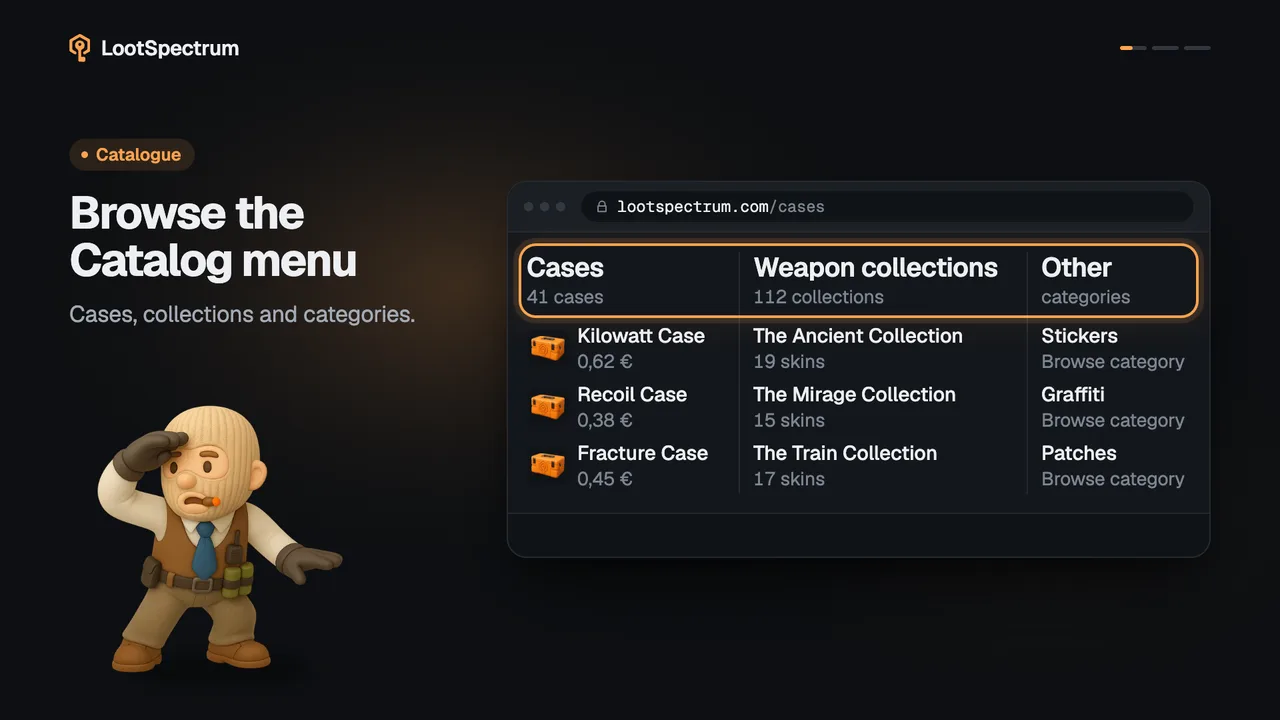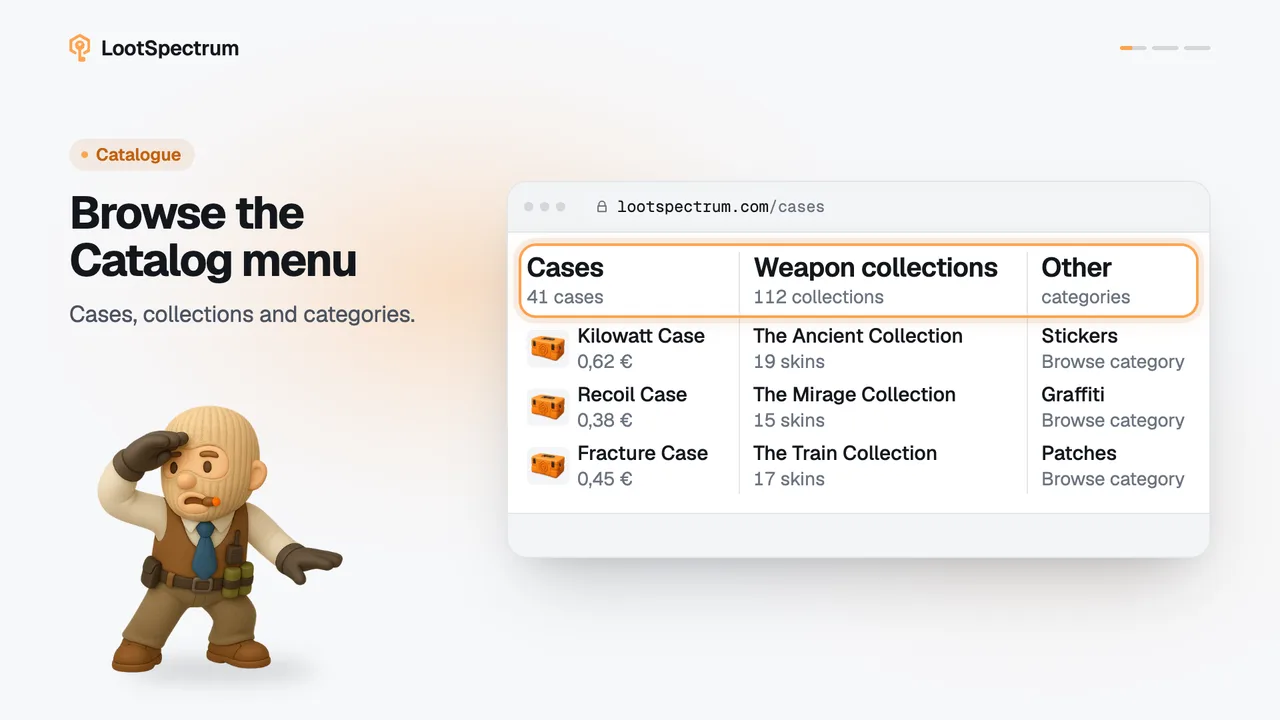
How do I search or jump to a page quickly?
0:14 · no sound
Press Cmd+K (Ctrl+K on Windows and Linux), or click “Search items” in the header, to search the catalogue and jump to any page. It searches items, cases, collections and help answers, not your own inventory.
Step by step
- Press Cmd+K on a Mac or Ctrl+K on Windows and Linux, or click “Search items” in the header; on a phone, tap “Search” in the bottom bar.
- Type at least two characters of an item, case or collection name; matching rows appear under “Items”, “Cases & containers” and “Collections”.
- Leave the field empty to see “Recent” and “Go to”, or type a page name such as “Sync” to find it among the “Go to” rows.
- Move with the arrow keys and press Enter, or click a row, to open it.
- Press Esc to close the search without going anywhere.
Good to know
- The search covers the catalogue, not your own inventory: your inventory is never searched, and nothing you type is matched against it.
- Typing at least two characters starts the search; a single character shows “Type at least 2 characters to search the catalog.”
- “Recent” lists the last six items you opened from search, kept in this browser only. “Clear” empties it; pages you jumped to are not saved.
- A “Help” group shows up to three matching answers, matched in your browser.
- Signed in, “Go to” lists Statistics, Activity, Sync, Inventory, Compare, Watchlist, Collections, Loadout, Cases, All items, Settings and Help. Signed out it lists Collections, Cases, All items and Help.
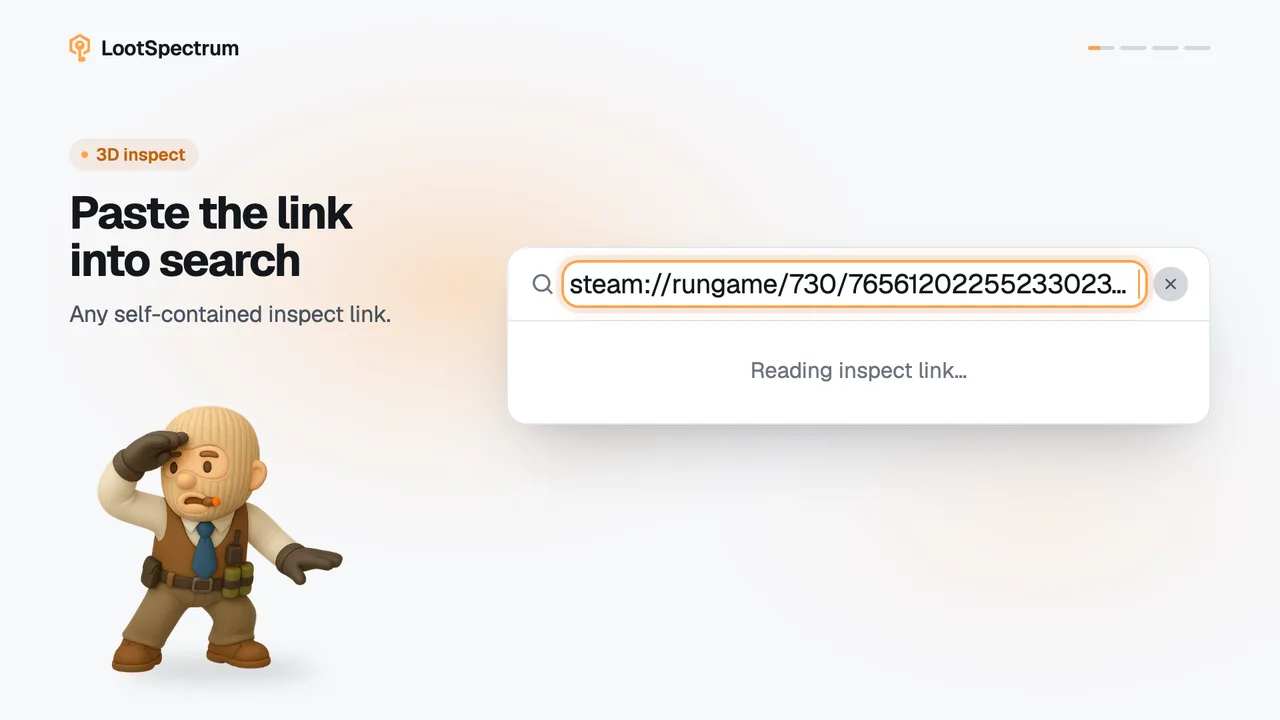
- Pasting an inspect link into the field offers “Inspect in 3D” instead of search results; see the inspect link answer.
- The header search box is shown on wide screens only; Cmd+K or Ctrl+K works on any page, and it also closes the search if it is already open.
Transcript
- 0:00Search from anywhere. Press ⌘K or Ctrl K.
- 0:03Type a name. Items, cases and collections.
- 0:06Jump to any page. Rows under “Go to”.
- 0:09It searches the catalog. Not your inventory.