How do I find a skin, case or collection?
0:11 · no sound
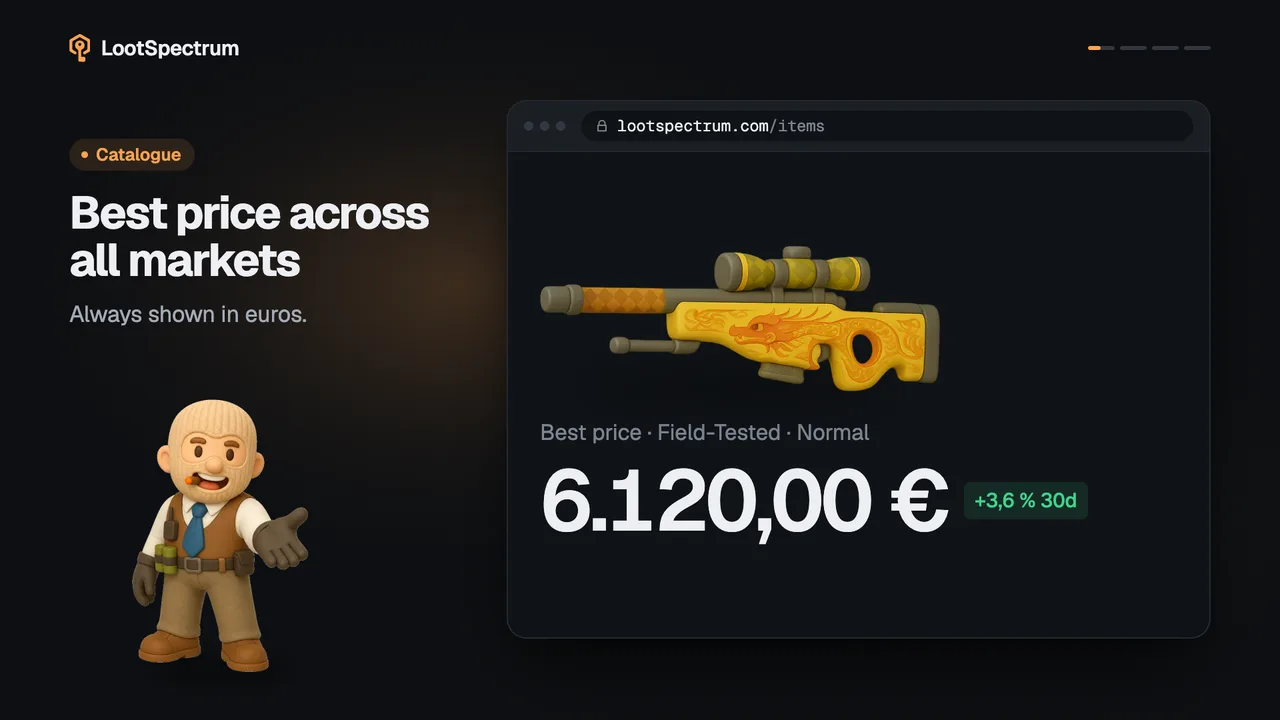
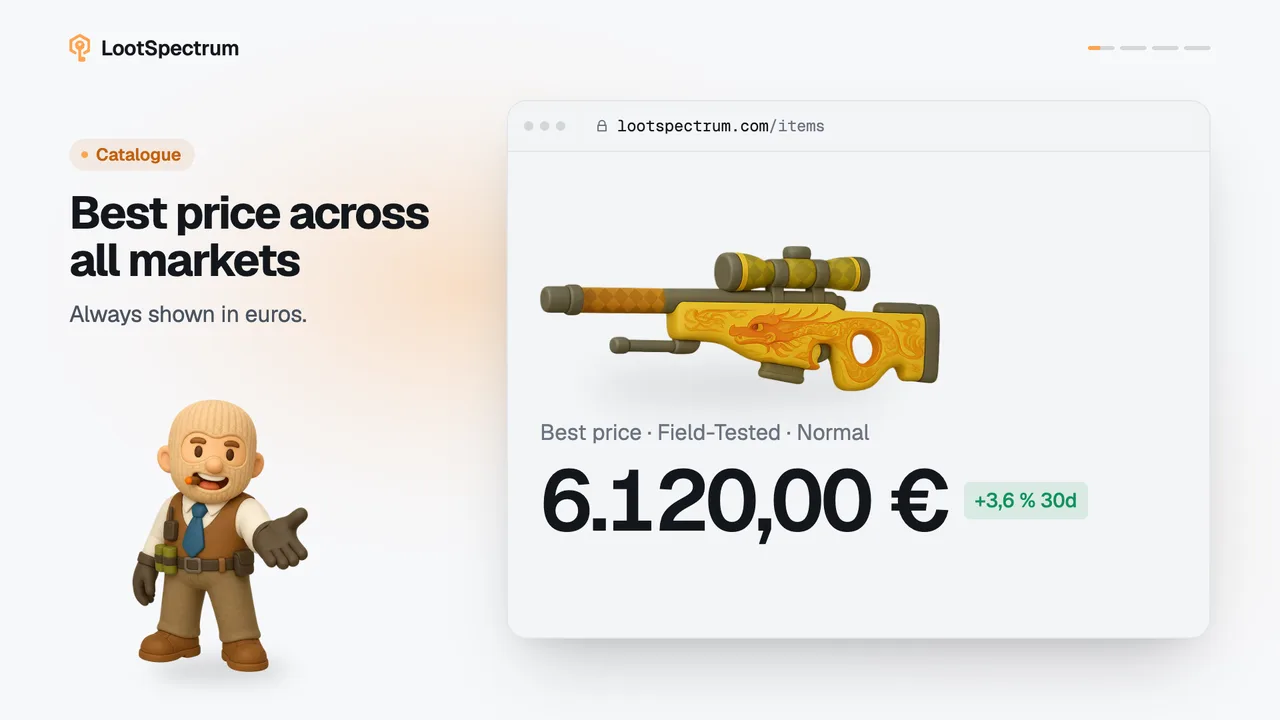
The Catalog menu leads to three lists: Cases, Collections and All items. Every list narrows by search, one type menu and a sort, and none of it needs an account.
Step by step
- Open the “Catalog” menu in the header, or the “Catalog” tab of the bottom bar on a phone, and choose “Cases”, “Weapon collections” or “BROWSE ALL →”.
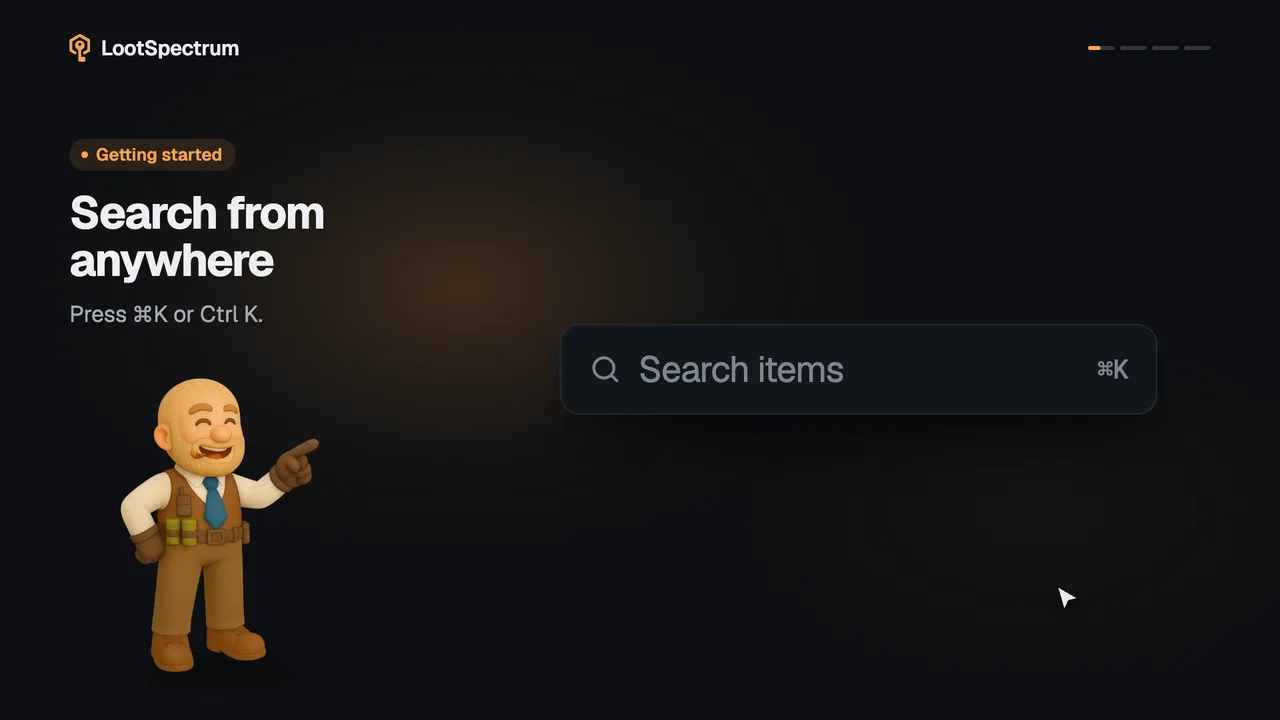
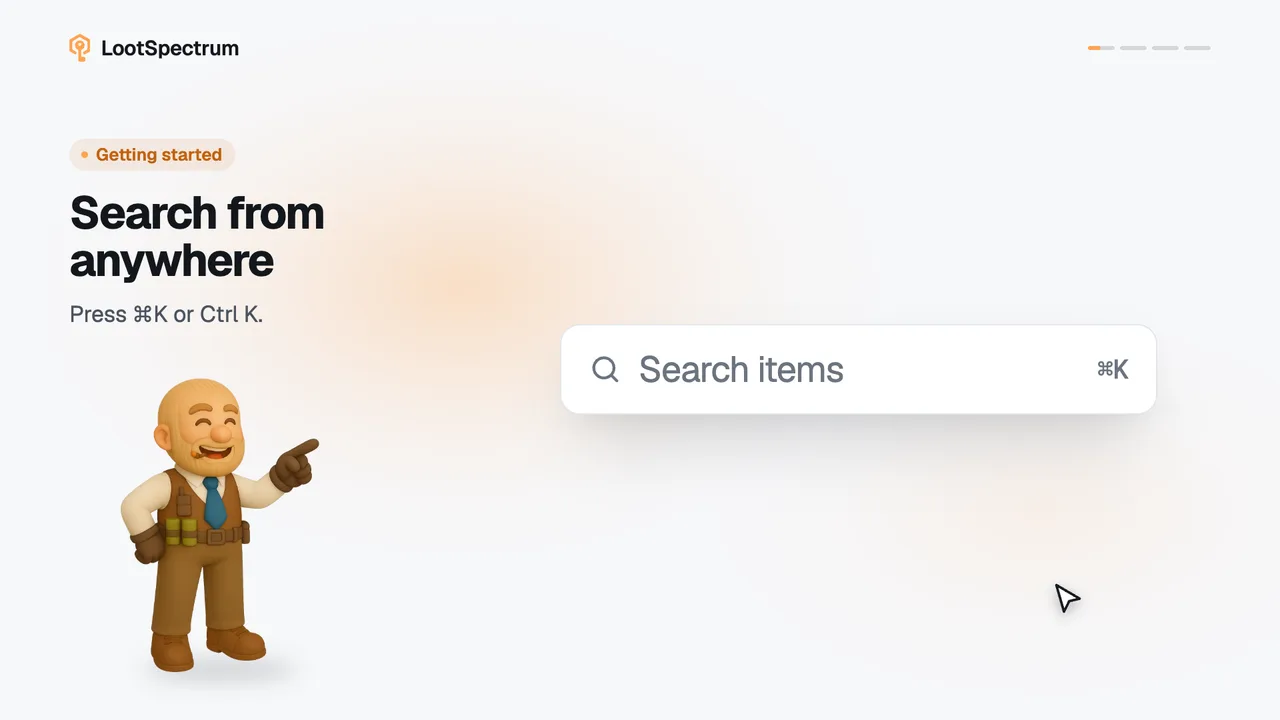
- On the list page, type a name into the search box; the list updates a moment after you stop typing.
- Pick a type in the type menu: “Item type” on All items, “Container type” on Cases, “Collection type” on Collections.
- Choose a sort: “Newest first”, “Oldest first”, “Name A–Z” or “Name Z–A”.
- Click “Load more” below the cards to extend the list, or “Reset” to clear the filters.
Good to know
- The catalogue is open without an account: the menu and all three lists work signed out.
- All items, Cases and Collections are three separate pages; All items holds every kind of item, Cases holds cases, capsules and other containers, and Collections holds skin collections.
- Cases has the type menu “Container type” with Weapon Cases, Capsules, Souvenir Packages, Sticker Capsules, Graffiti Boxes, Music Kit Boxes, Gift Packages and Other.
- Collections opens on the “Skins” type and also offers Stickers, Charms, Agents and Graffiti under “Collection type”; choose “All types” to see them together.
- There are only three filters: search, one type menu and a sort. There is no rarity, weapon or price filter on the list pages.
- “Reset” appears once a filter has been changed, and the count under the cards shows how many of the total are loaded.
- Signed in, the menu hangs on the “Collections” tab of Market mode; signed out it is “Catalog” in the header; on a phone it is the “Catalog” tab of the bottom bar.
- Signed in, the menu also shows how many of each case you have opened and how many skins of each collection you own.
- The search box in the header and its keyboard shortcut are a separate topic, and so is pasting an inspect link.
Transcript
- 0:00Browse the Catalog menu. Cases, collections and categories.
- 0:03Narrow any list down. Search, pick a type, sort.
- 0:06Cases includes every container. Filter them by Container type.