Can I close the tab or stop a sync halfway?
0:11 · no sound
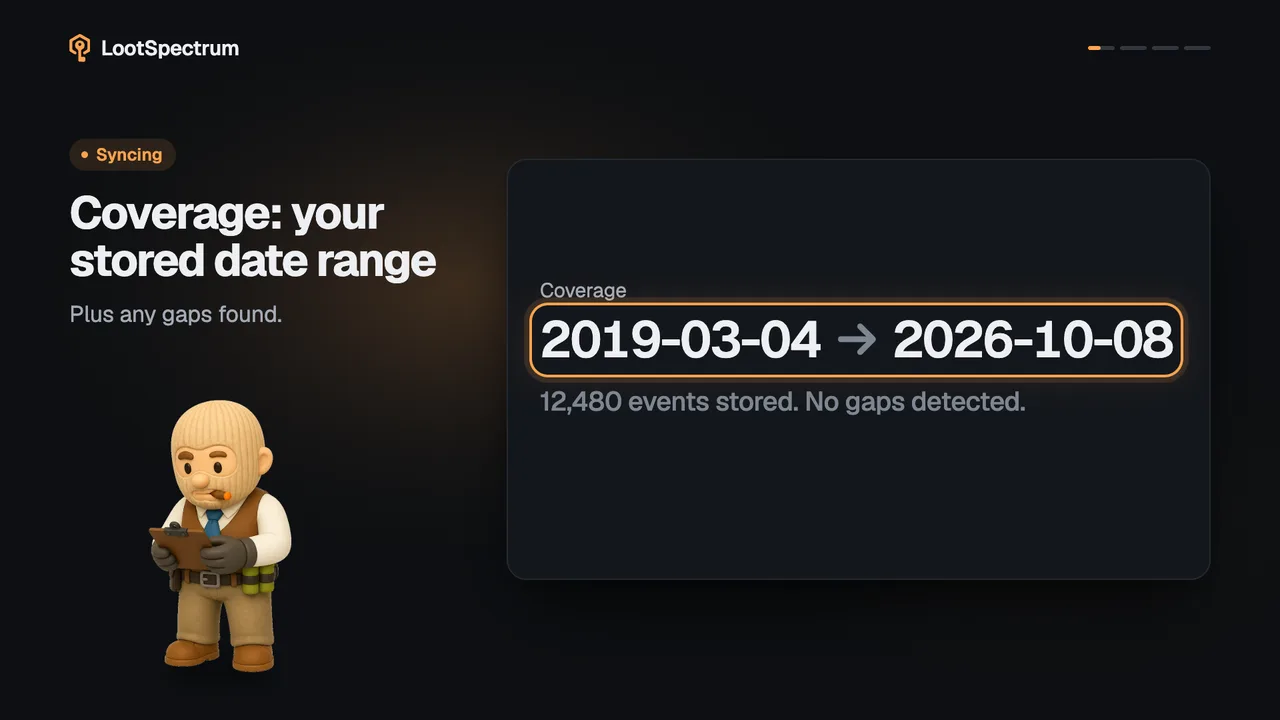
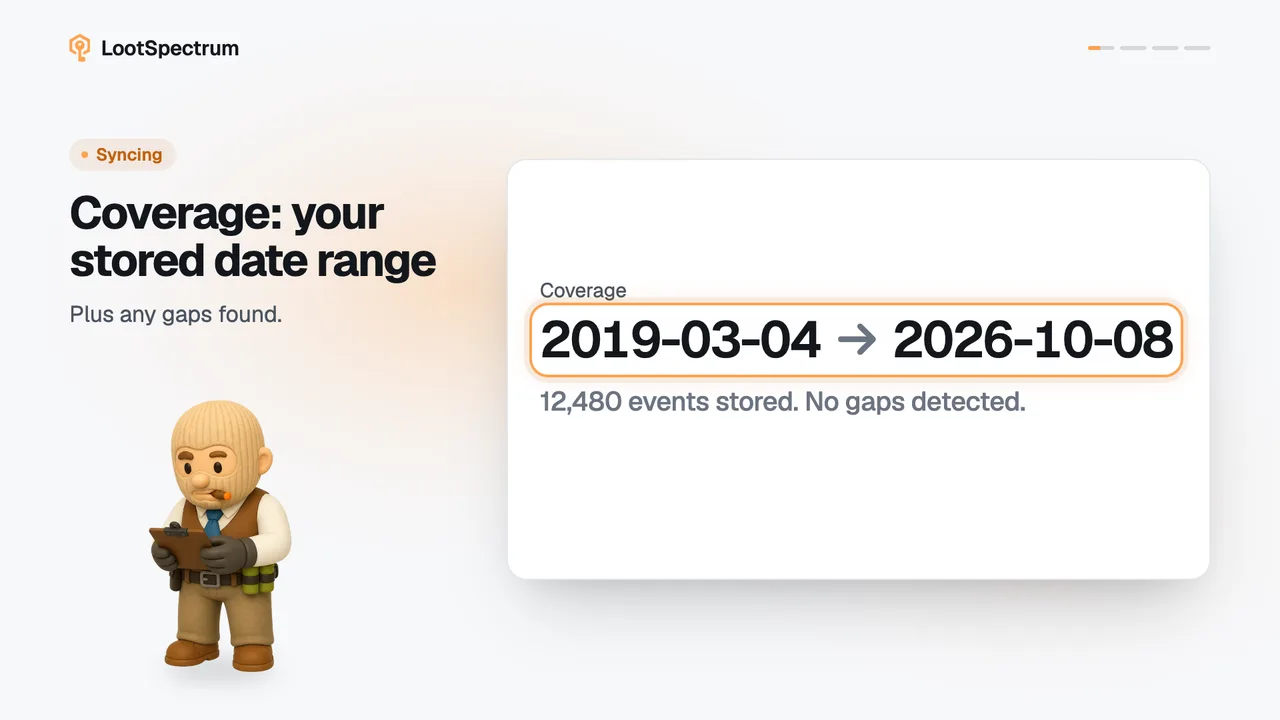
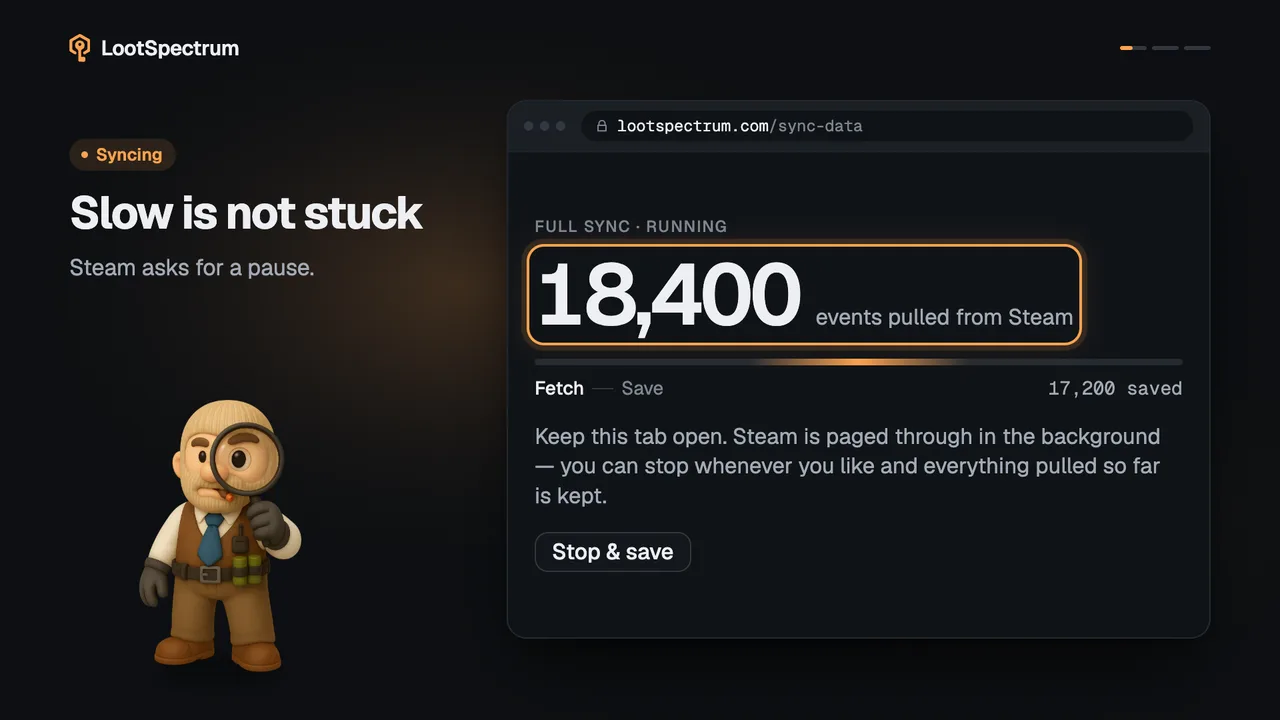
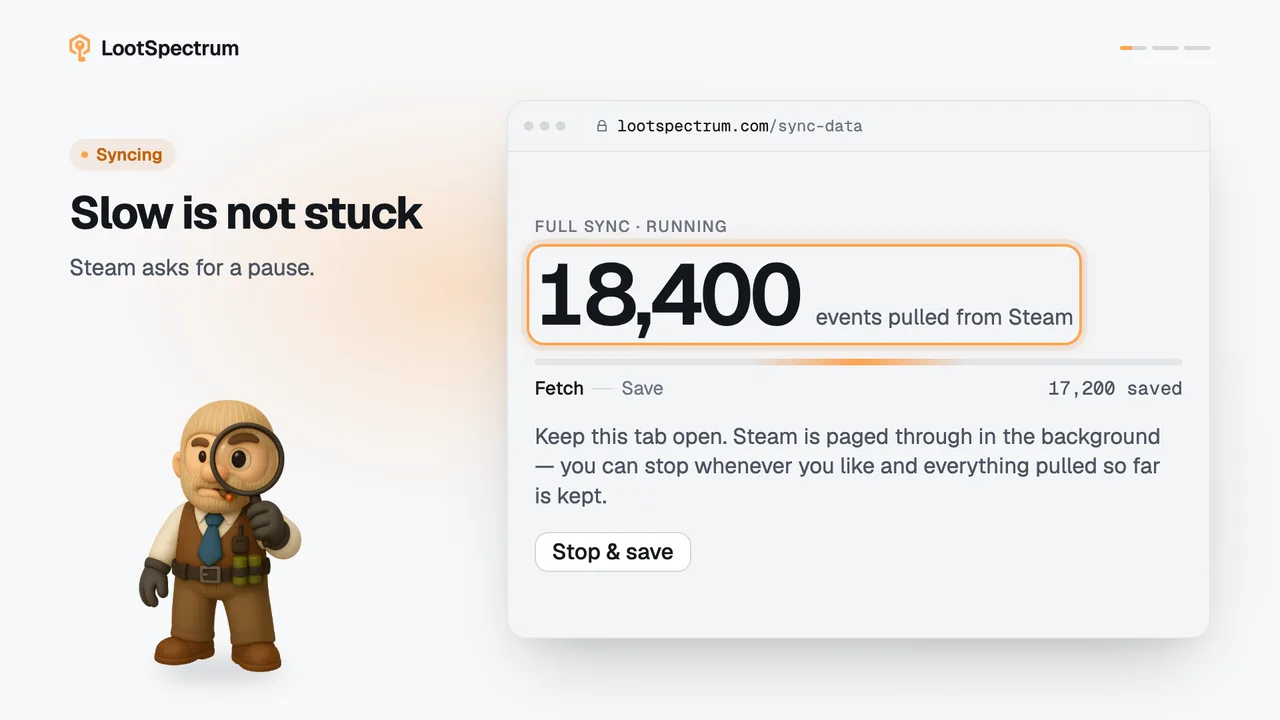
Leave the Sync tab open: it receives the events from the extension and saves them to your account. “Stop & save” keeps everything pulled so far; the Coverage block then shows the older part that is missing.
Step by step
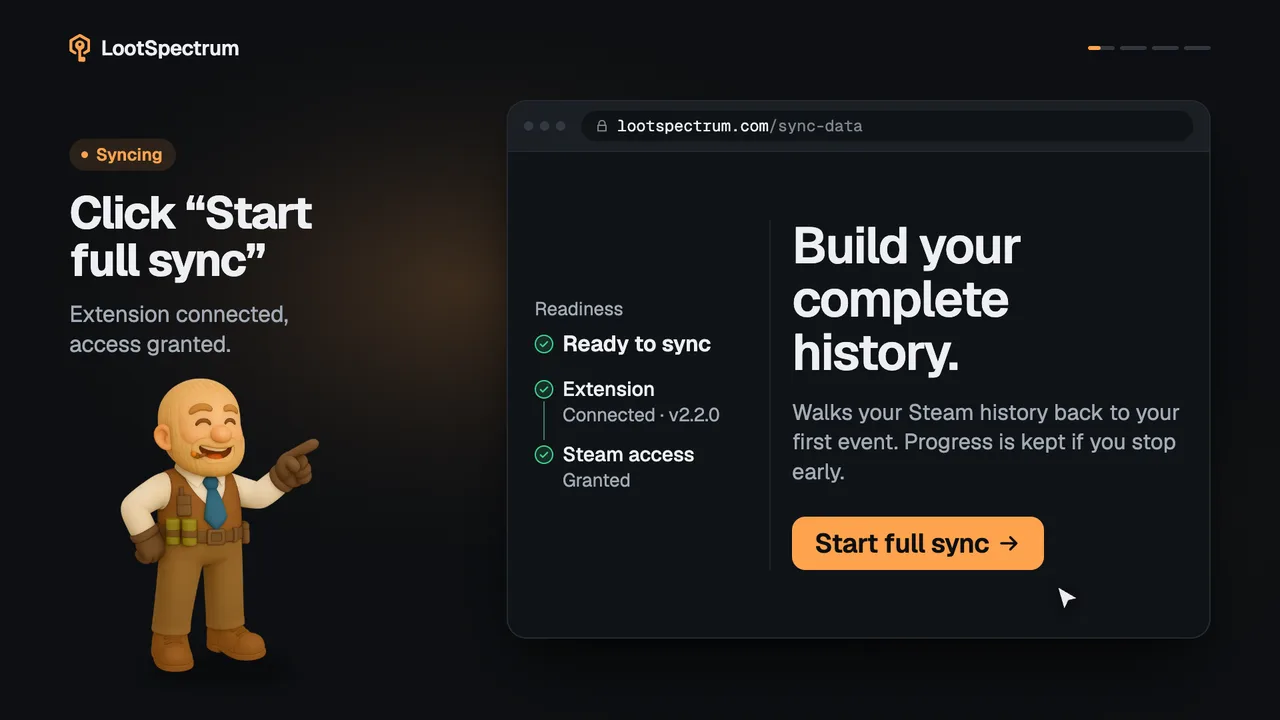
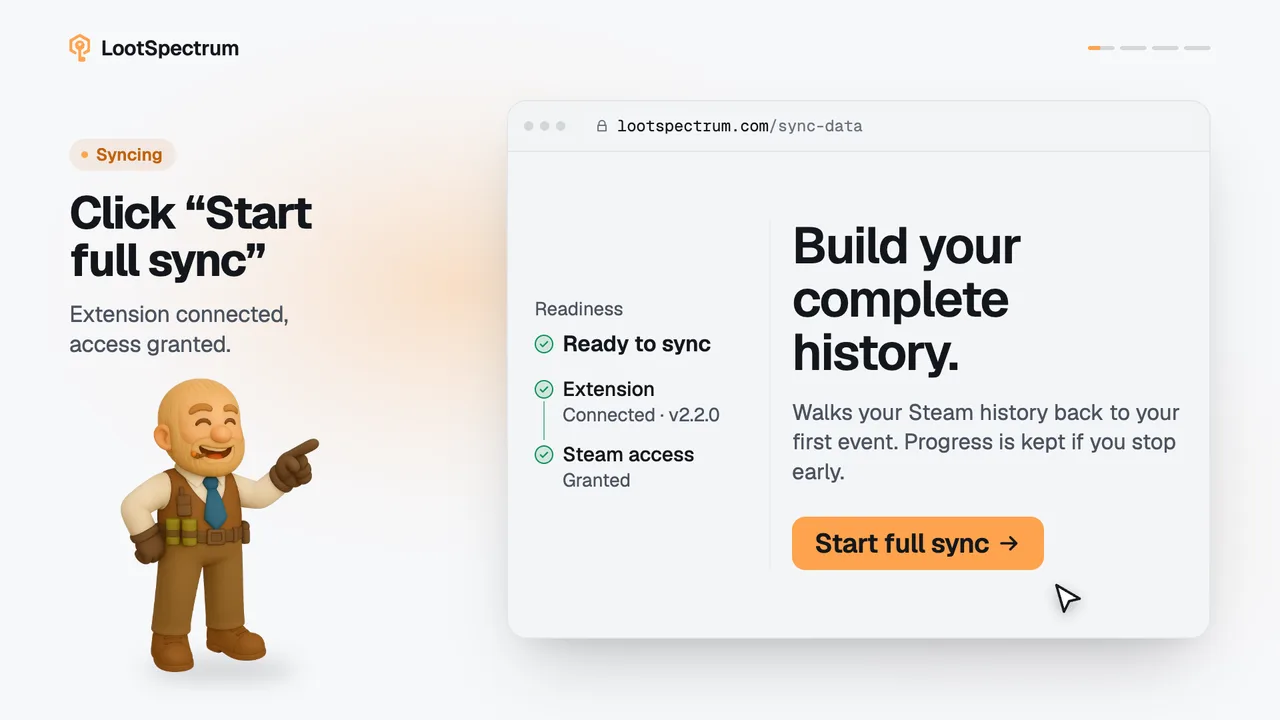
- Start a sync on the Sync page and leave that tab open while it runs; the extension reads Steam, and the tab saves the events to your account in batches.
- If you must stop, click “Stop & save” under the counter; the events pulled so far are kept.
- The result screen reads “Stopped early” above the count of saved events; click “Back to sync options” to return.
- A full sync reads from today backwards, so the newest events are saved and the oldest are the part that is missing.
- Open the Coverage block on the Sync page, which shows the stretch that has not been checked, and click “Fill first gap” to fetch it.
Good to know
- The extension only reads Steam; the open Sync tab is what receives the events and saves them to your account.
- “Stop & save” is offered only while events are being pulled from Steam. Once the page is writing the last batch, it has nothing left to stop.
- “Catch up now” and “Check for new events” read only from today back to your latest saved event, so they do not fetch an older missing part.
- “Rebuild everything instead” reads the whole history again; events you already have are skipped, not added twice.
- A stopped sync appears in “Recent syncs” with the status text “saved · stopped early”.
- A counter that stands still is a different case, covered in the answer on slow syncs, and so is an error screen, covered in the answer on failed syncs.
Transcript
- 0:00This tab saves your events. So leave it open.
- 0:03“Stop & save” keeps your progress.
- 0:06Stopped early? Fill the gap. Coverage shows it.