How do I run my first full sync?
0:14 · no soundExtension
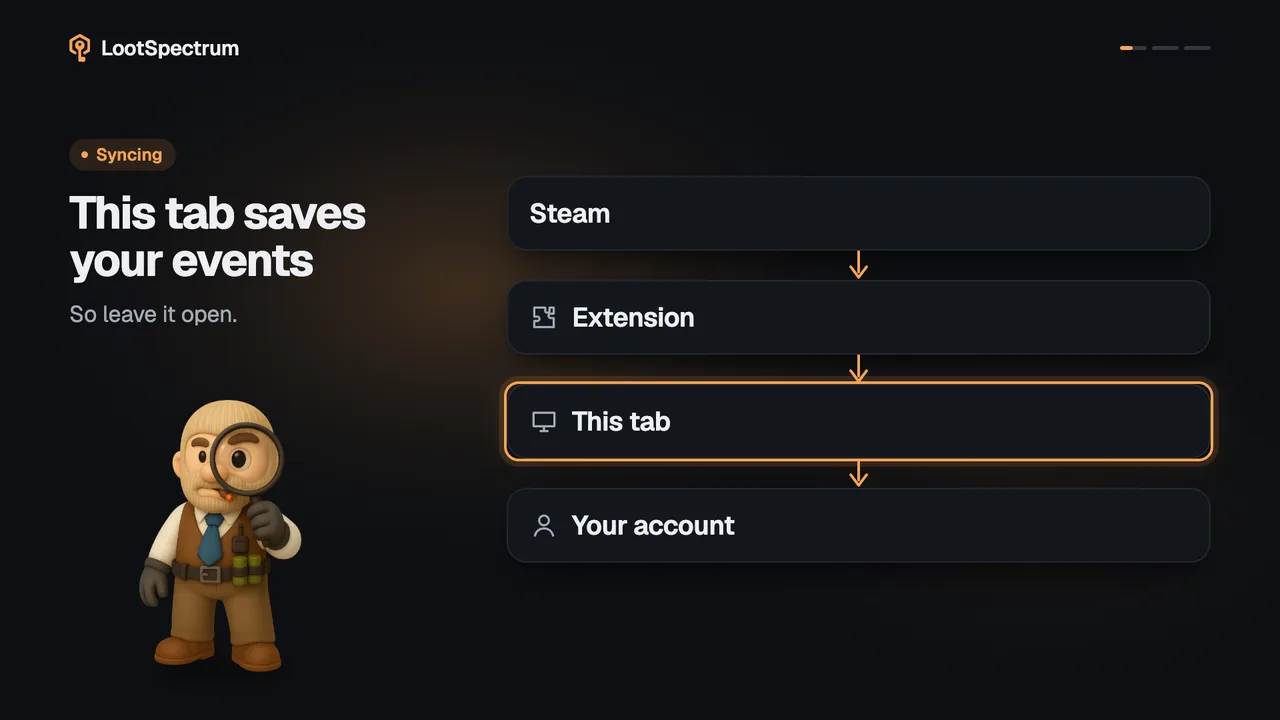
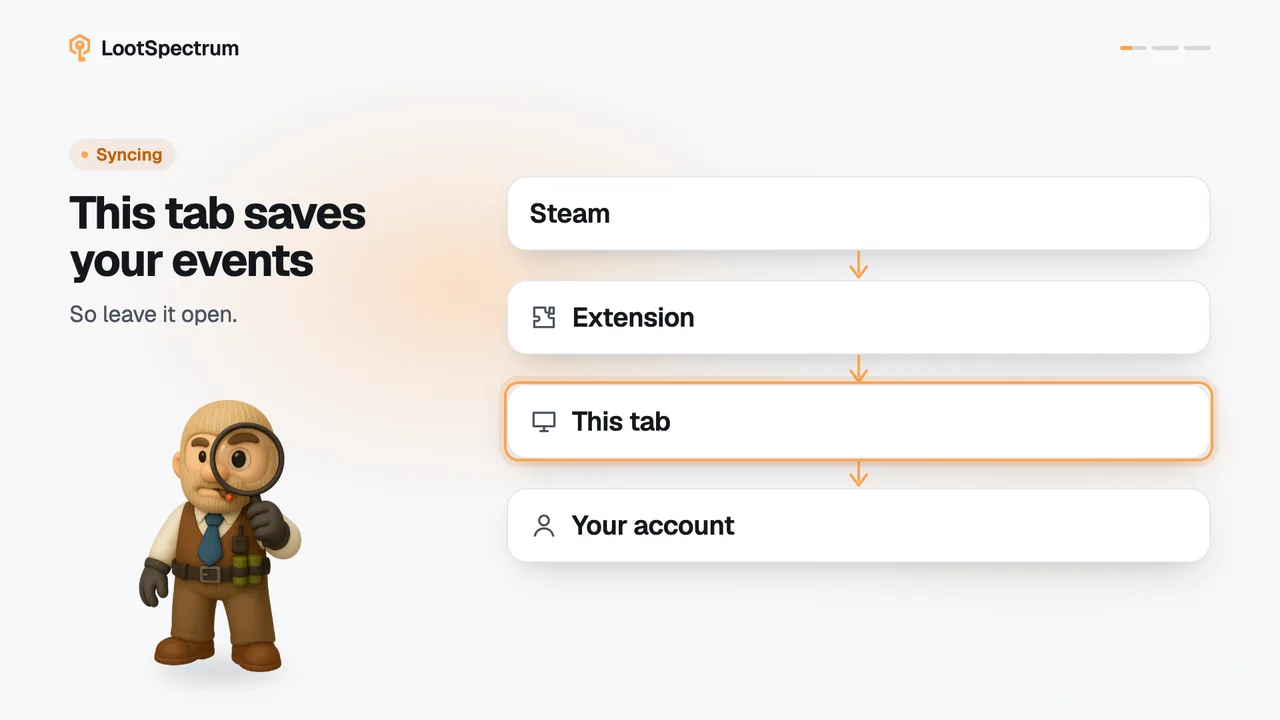
On the Sync page, click “Start full sync” and keep the tab open. The counter shows the events pulled from Steam; when it finishes, the done screen shows how many new events were saved.
Before you start
- The extension installed and connected: How do I install the extension and connect it?
- Steam access granted to the extension: What permissions does the extension ask for, and why?
- Logged in to Steam in this browser: Do I need to be logged into Steam, and how do I check?
- A LootSpectrum account: How do I create an account, and can I sign in with Steam?
- A desktop browser.
Step by step
- Open Sync. With no history yet it reads “Build your complete history.”, and the Readiness list shows Extension “Connected” and Steam access “Granted”.
- Click “Start full sync”.
- Keep the tab open. The large number counts the events pulled from Steam, and “saved” beside the bar shows how many are already in your account.
- To stop early, click “Stop & save”. Everything pulled so far is kept, but a full sync reads newest first, so the oldest part is then still missing.
- When it is done, the green number is the new events saved. Click “View statistics” to see them.
Good to know
- Before you start you need the extension installed, both permissions granted, and a login to Steam in this same browser. The extension needs a desktop browser.
- How long it takes depends on how long your history is, and Steam limits the speed. No fixed time can be promised.
- Running a full sync again is safe: events you already have are not added twice.
- Under the count the done screen can add “N already had”, “N skipped” and “N rejected”. “Already had” is normal on a repeat sync.
- The Coverage block in the Readiness list shows the date range you have stored and whether gaps were found.
What does “N events could not be imported” mean?
Your events are saved. Only items that LootSpectrum does not have in its catalogue yet were left out of them; the line is an expandable list, and each entry names one such item. Open it with the small arrow to read the names.
The number counts those items, not events, even though the line says “events”. The list names up to eight of them, then “… and N more.” There is nothing for you to fix.
Transcript
- 0:00Click “Start full sync” Extension connected, access granted.
- 0:03Keep the tab open. It counts events pulled from Steam.
- 0:06Stopping keeps what was pulled. Older events are still missing.
- 0:09Done: new events saved. Next, open your statistics.