What permissions does the extension ask for, and why?
0:14 · no soundExtension
The extension asks for two permissions, both when you click “Grant access” on the Sync page: browser tabs, to check your Steam sign-in in a background tab, and steamcommunity.com, to read your inventory history.
Before you start
- The extension installed and connected: How do I install the extension and connect it?
- A LootSpectrum account: How do I create an account, and can I sign in with Steam?
Step by step
- Open the Sync page once the extension shows as connected; the step “Let the extension reach Steam” lists both permissions before your browser asks.
- Browser tabs lets the extension open an inactive Steam tab in the background to check that you are signed in to Steam.
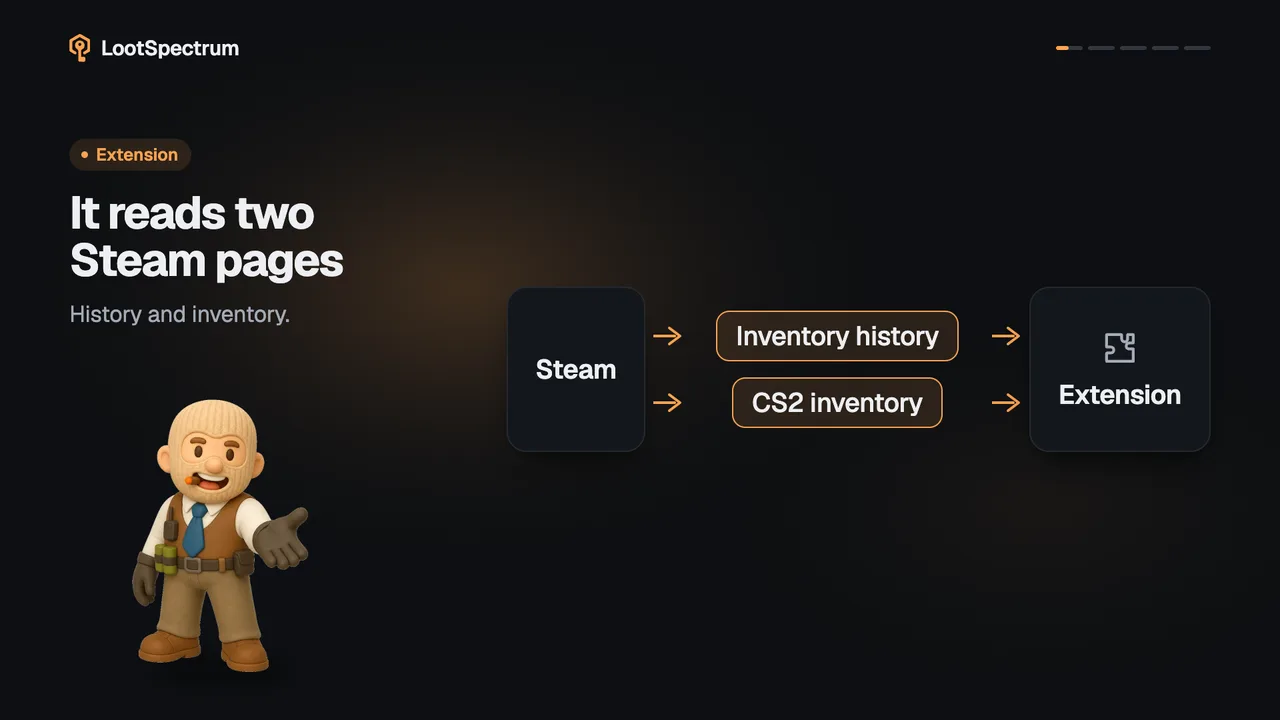
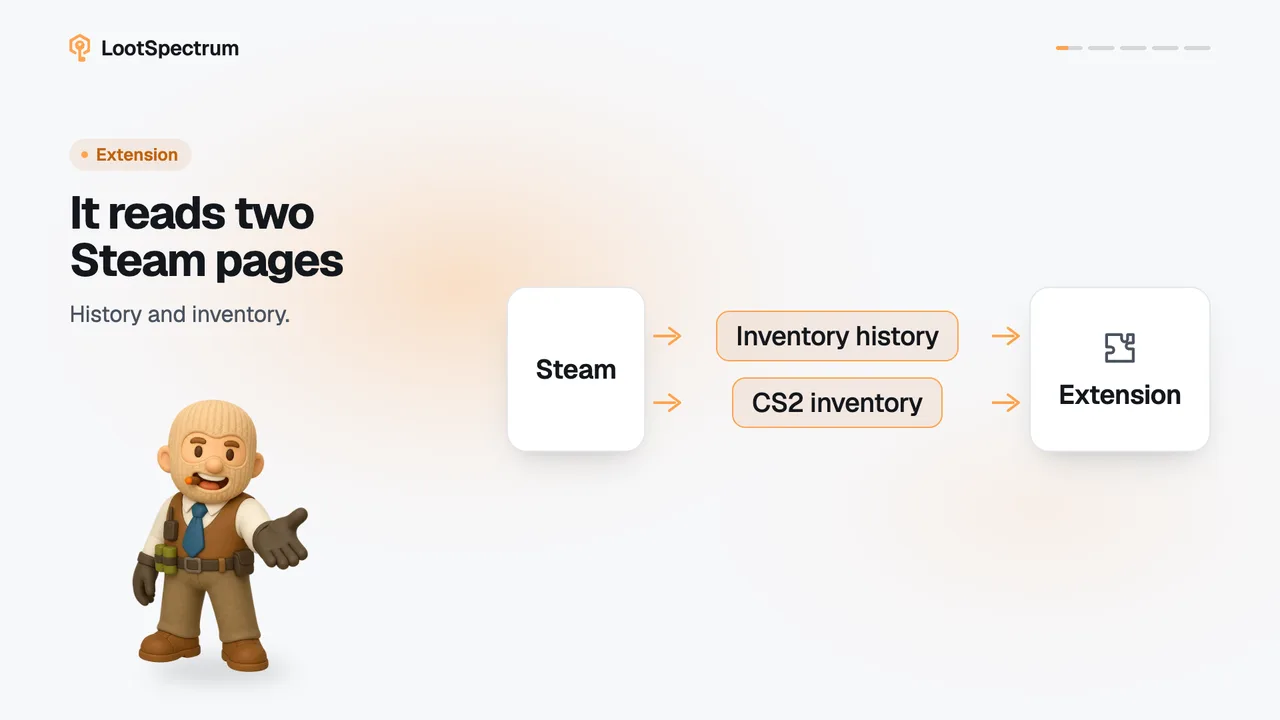
- steamcommunity.com lets the extension read your inventory history pages and your current CS2 inventory.
- Click “Grant access” and confirm the prompts your browser shows, tabs first, then steamcommunity.com.
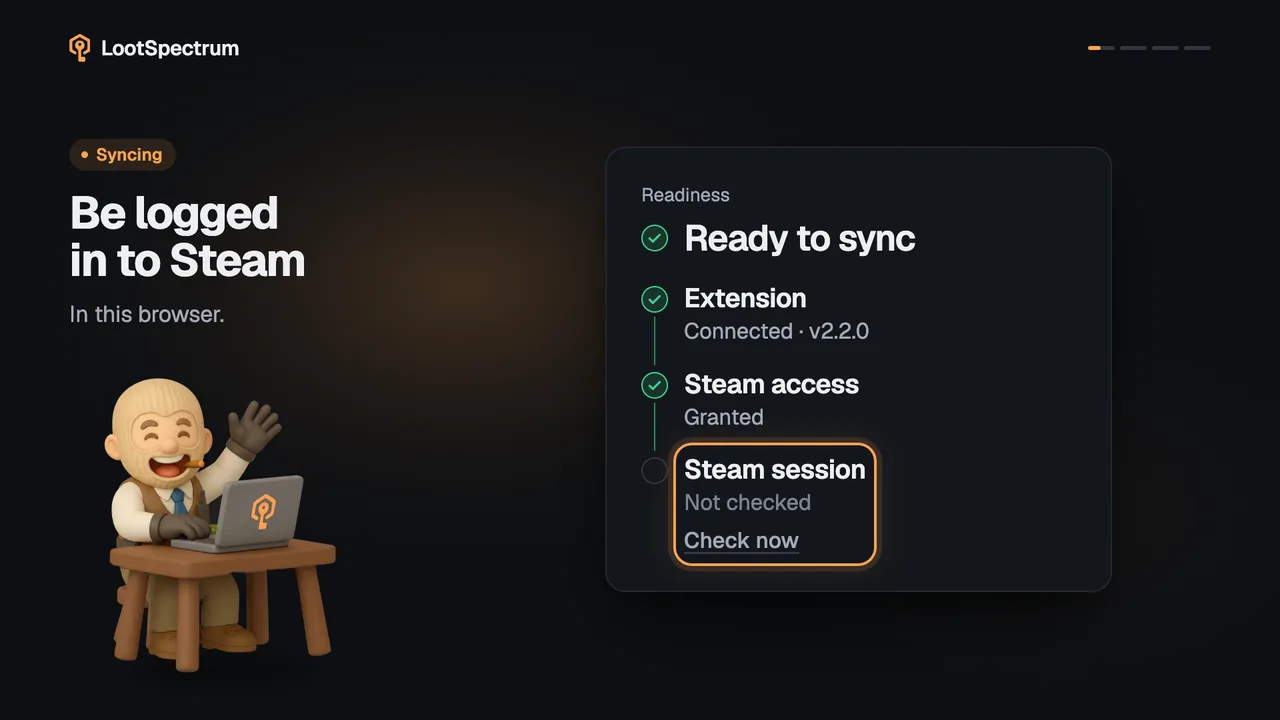
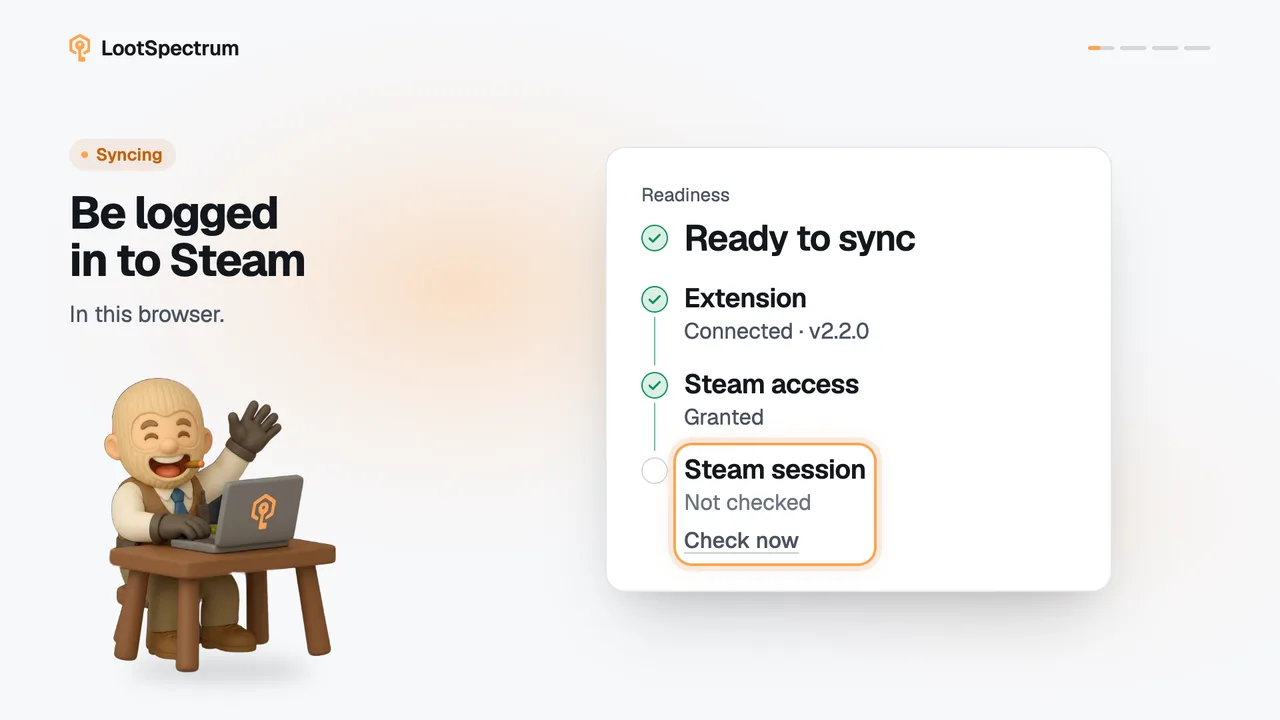
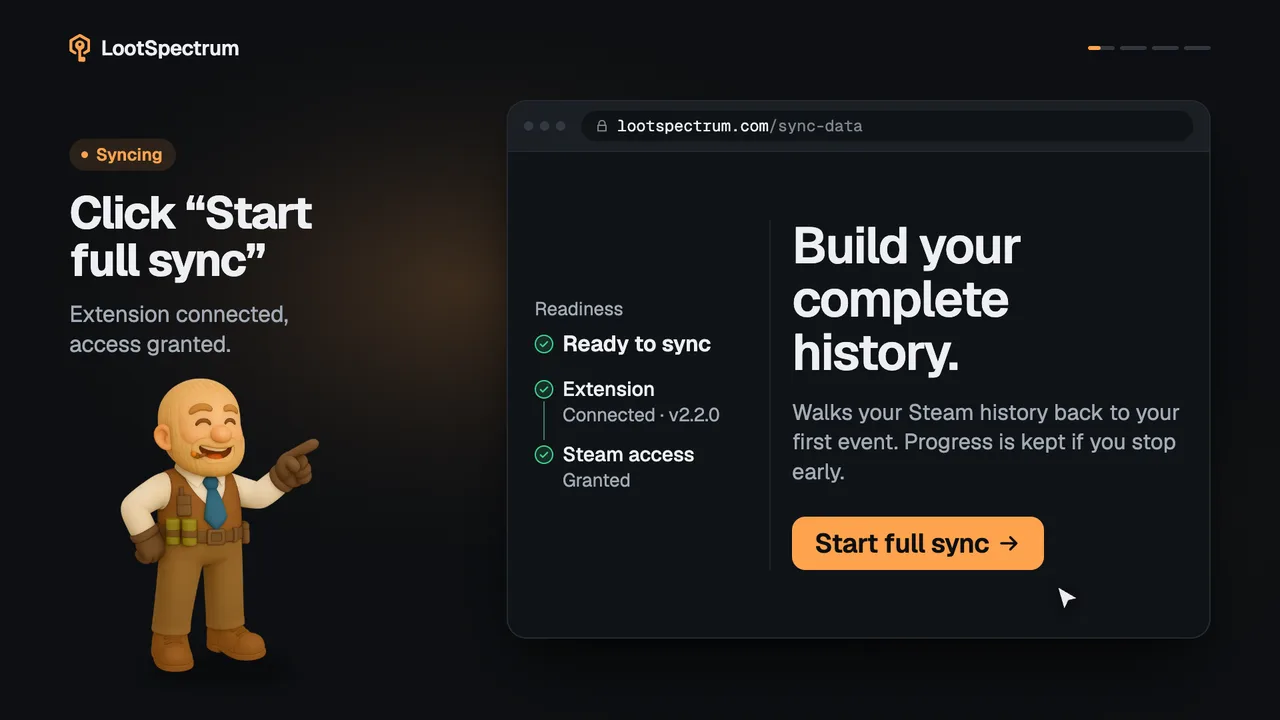
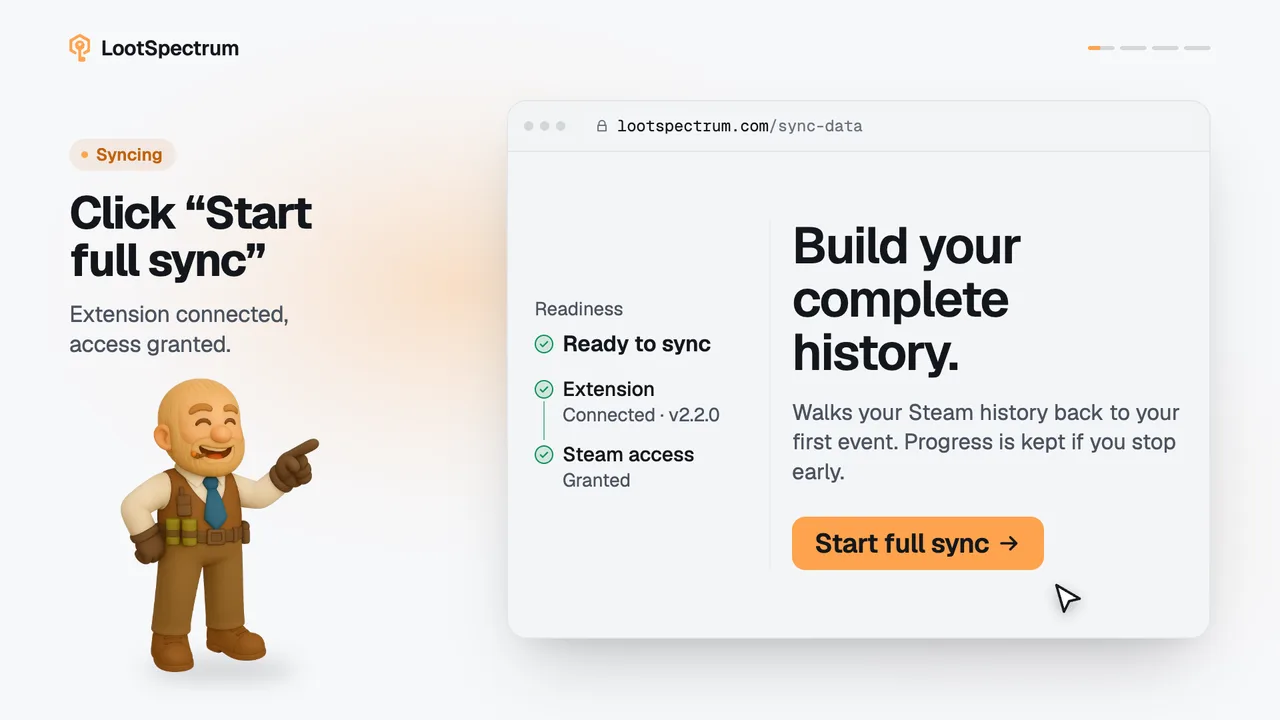
- When both are confirmed, Steam access in the Readiness list reads “Granted”; the next step is the Steam login check.
Good to know
- The two prompts come one after the other, tabs first, then steamcommunity.com, and only for what is still missing.
- The tab permission is used for one thing: an inactive Steam tab that checks whether you are signed in. The history itself is read by direct requests, without opening tabs.
- steamcommunity.com lets the extension read your inventory history pages and your current CS2 inventory; no other site is touched.
- Your browser words the prompts itself, and the tabs prompt can read more alarming than “Browser tabs”.
- If you decline one, the step stays, a line such as “Permission was not granted.” appears and Steam access keeps reading “Needs your approval”.
- “Or upload what the extension already cached” works without either permission.
- The extension also stores its own data in the browser; that needs no prompt.
- How to withdraw access, and what the extension never reads, is covered in the answer on whether the extension is safe.
Transcript
- 0:00Two permissions to confirm. After you click “Grant access”.
- 0:03Browser tabs. Opens a Steam tab to check sign-in.
- 0:06Steam’s own website. Lets it read your inventory history.
- 0:09Steam access: Granted. Next: check your Steam login.