Do I need to be logged into Steam, and how do I check?
0:14 · no soundExtension
Yes. The extension reads your history through the Steam login in your browser, so you must be signed in to Steam in that same browser. On the Sync page, click “Check now” next to Steam session to see whether you are.
Before you start
- The extension installed and connected: How do I install the extension and connect it?
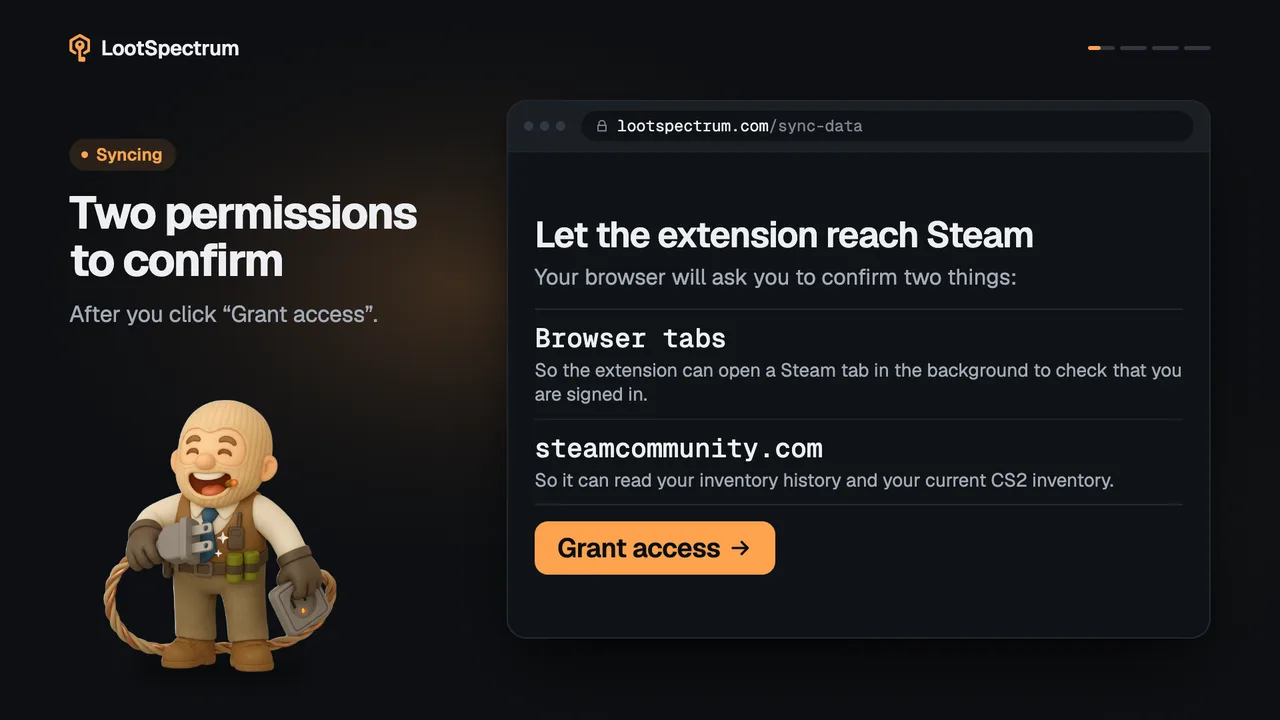
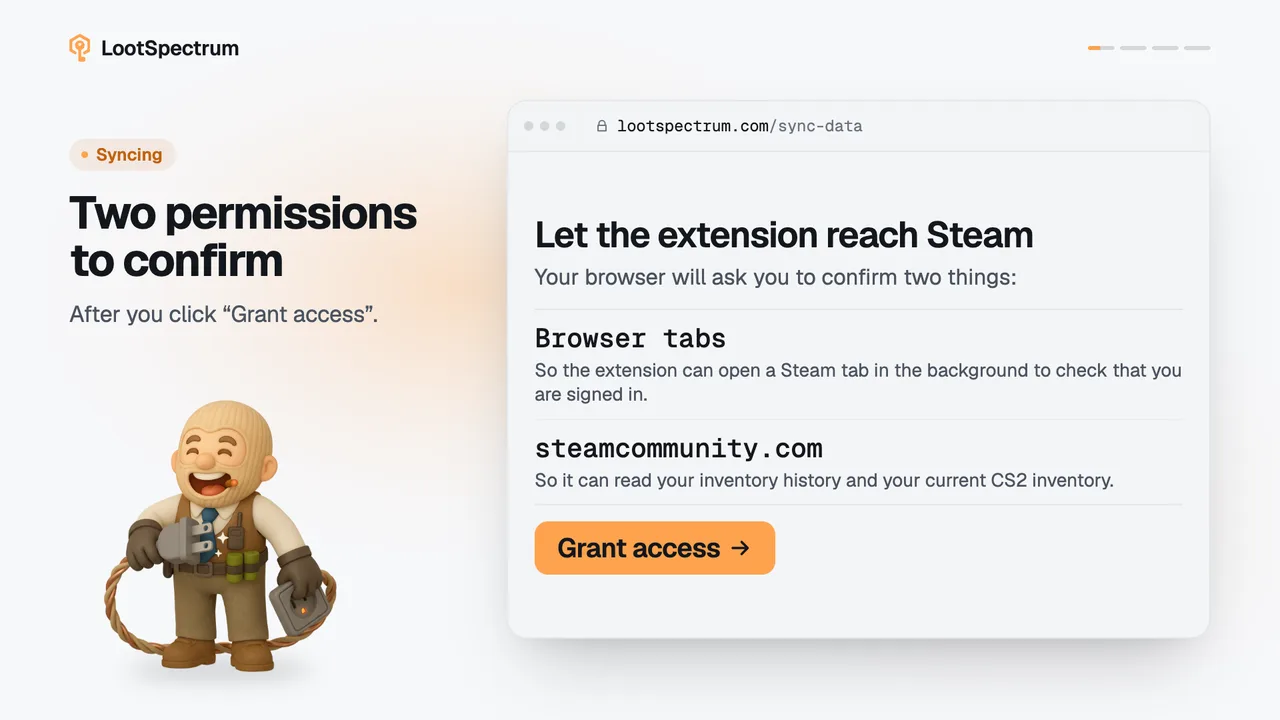
- Steam access granted to the extension: What permissions does the extension ask for, and why?
Step by step
- Open the Sync page and find “Steam session” in the Readiness list; it starts as “Not checked”.
- Click “Check now”; the row reads “Checking…” while a Steam tab opens in the background for a moment and closes again.
- If the row reads “Signed in as” followed by your Steam name, you are ready.
- If it reads “Not signed in”, log in at steamcommunity.com in the same browser, then click “Check again”.
Good to know
- LootSpectrum never sees your Steam password; you sign in on Steam's own site.
- Being logged in to the Steam desktop app is not enough; it must be the browser the extension runs in.
- The check is optional and does not run when the page loads.
- “Start full sync” runs the check by itself when it needs to, and says “Please sign in to Steam in your browser, then try again.” if you are not signed in.
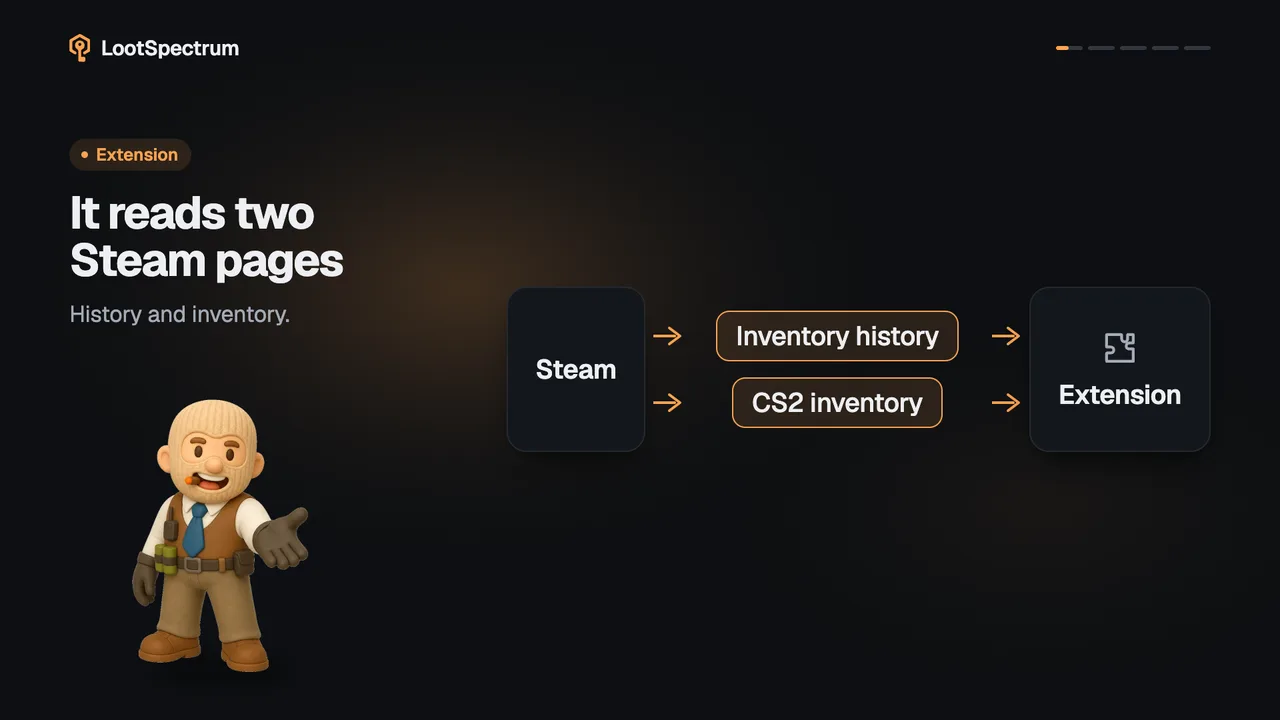
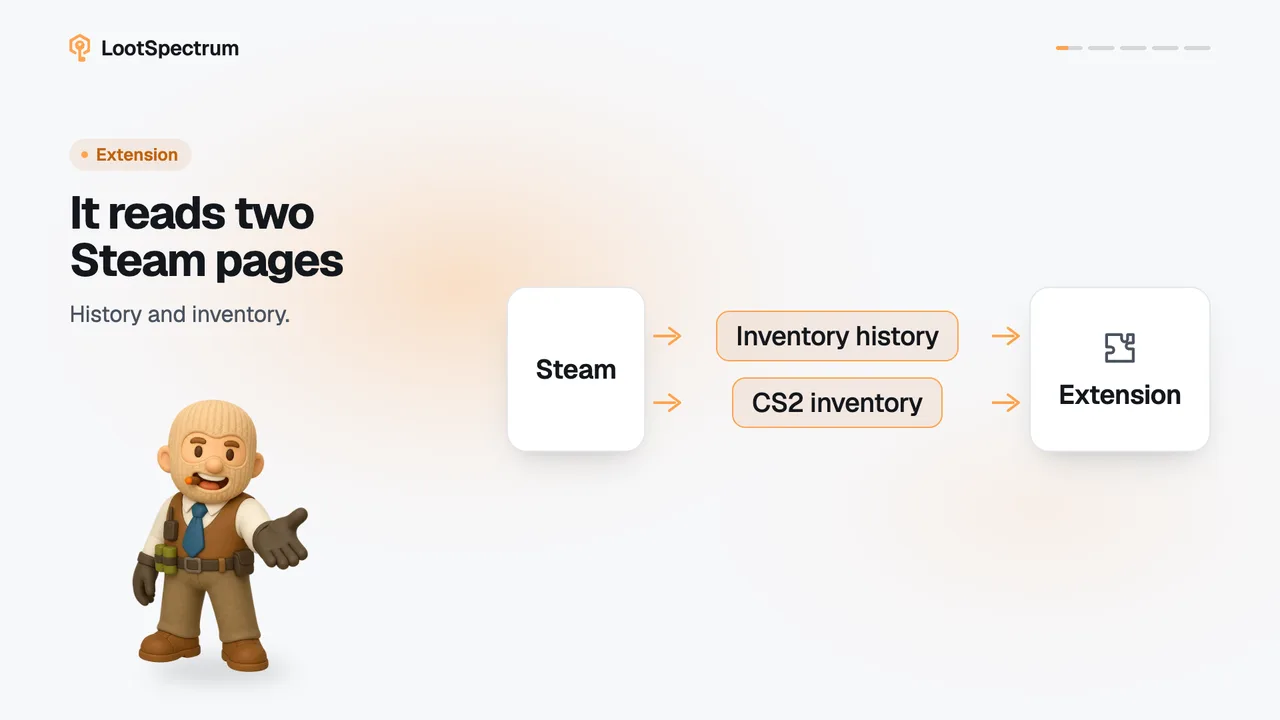
- The check opens your Steam inventory history page in an inactive tab and closes it again.
- “Not signed in” can also appear when Steam's page is slow to answer; click “Check again”.
- “Ready to sync” at the top of the Readiness list does not include the Steam session.
- “Check now” needs the extension to be connected; without it the button is disabled.
Transcript
- 0:00Be logged in to Steam. In this browser.
- 0:03Click “Check now” A Steam tab opens, then closes.
- 0:06Not signed in? Log in to Steam. Then “Check again”.
- 0:09Signed in: you are set. Your Steam name appears.