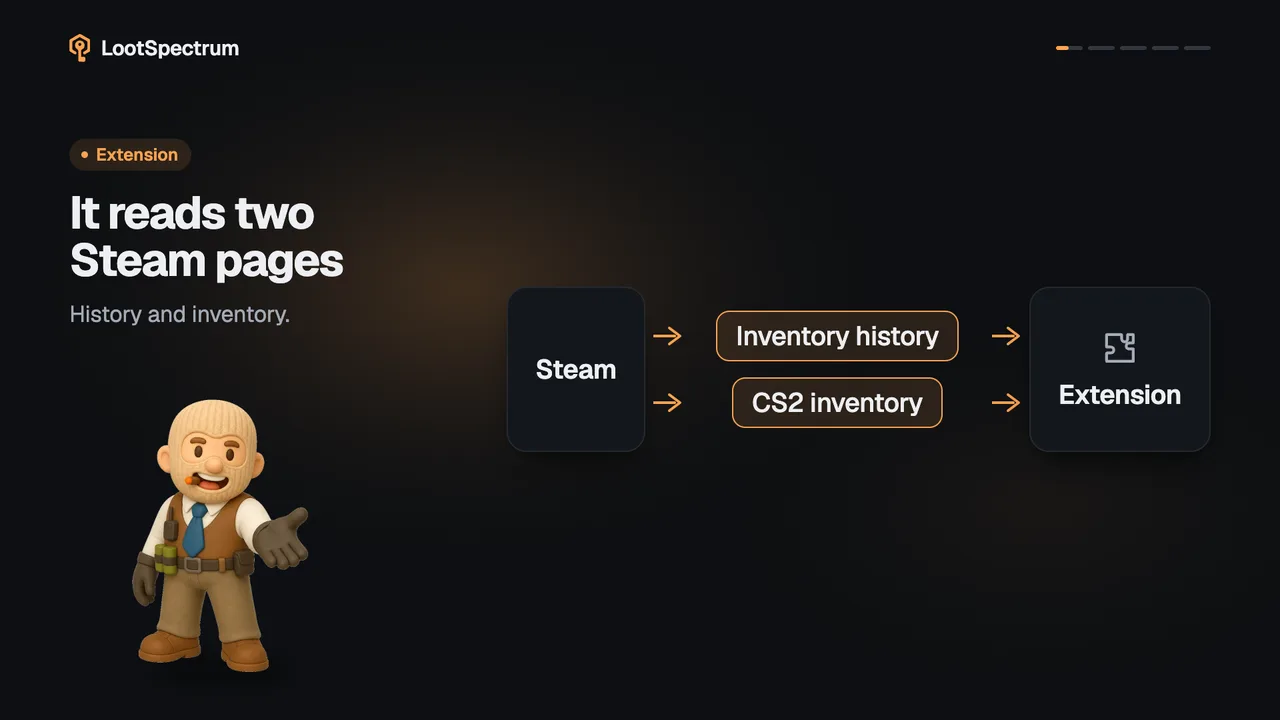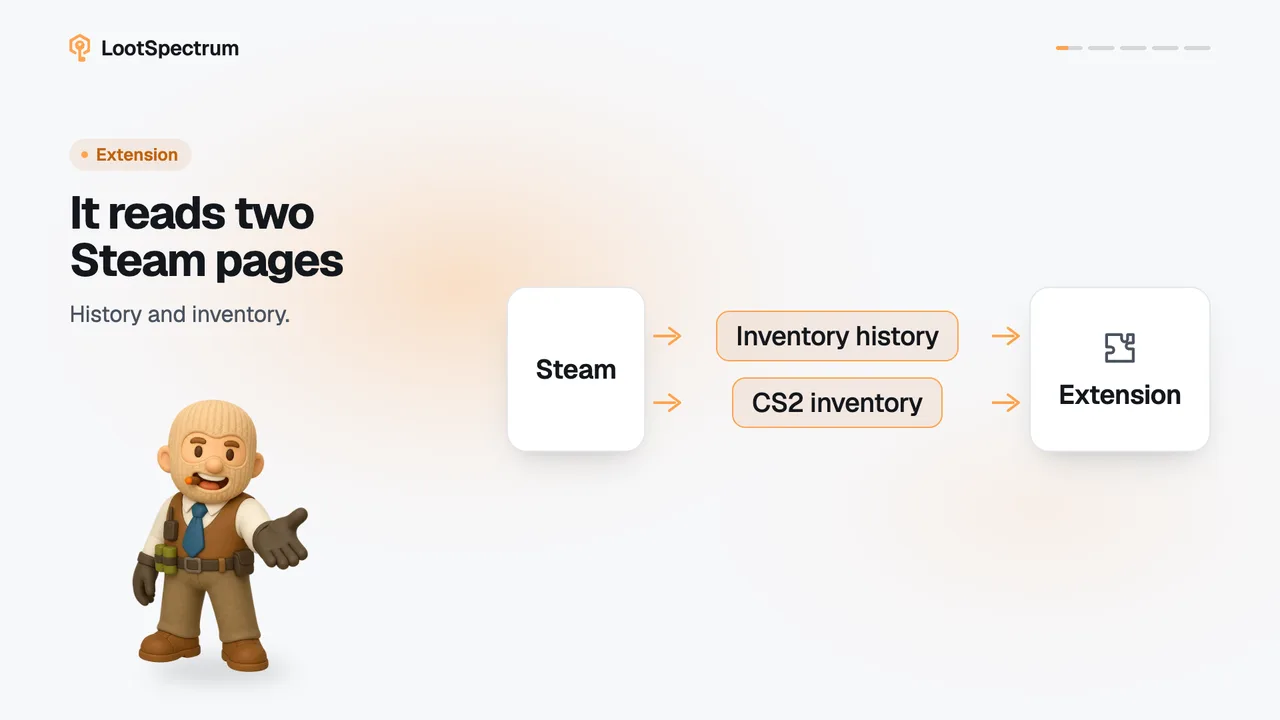
How do I install the extension and connect it?
0:11 · no soundExtension
Add the extension from the Chrome Web Store or Firefox Add-ons, then go back to the Sync page. It finds the extension by itself and shows it as Connected. If it says the extension is older than 2.1.0, update it in the store.
Before you start
- A LootSpectrum account: How do I create an account, and can I sign in with Steam?
- A desktop browser.
Step by step
- Sign in to LootSpectrum and open the Sync page at lootspectrum.com/sync-data.
- Under “Install the extension”, click “Add to Chrome” or “Add to Firefox” and add the extension in the store.
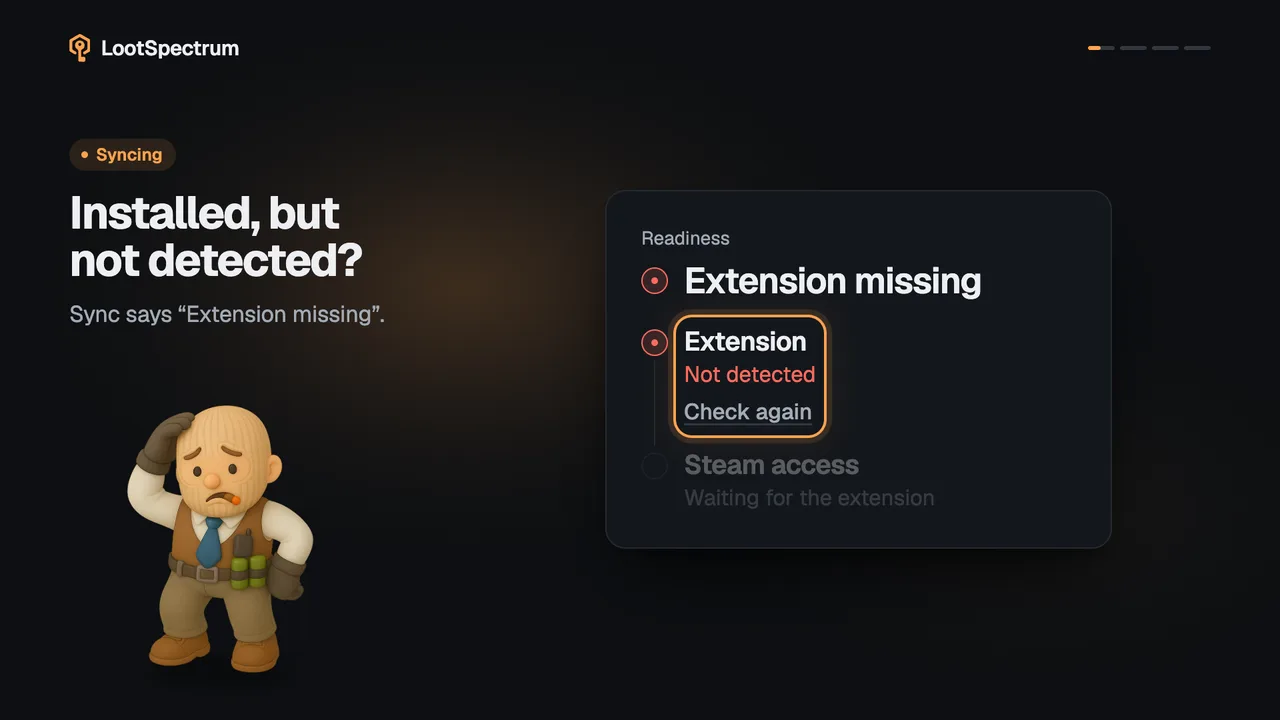
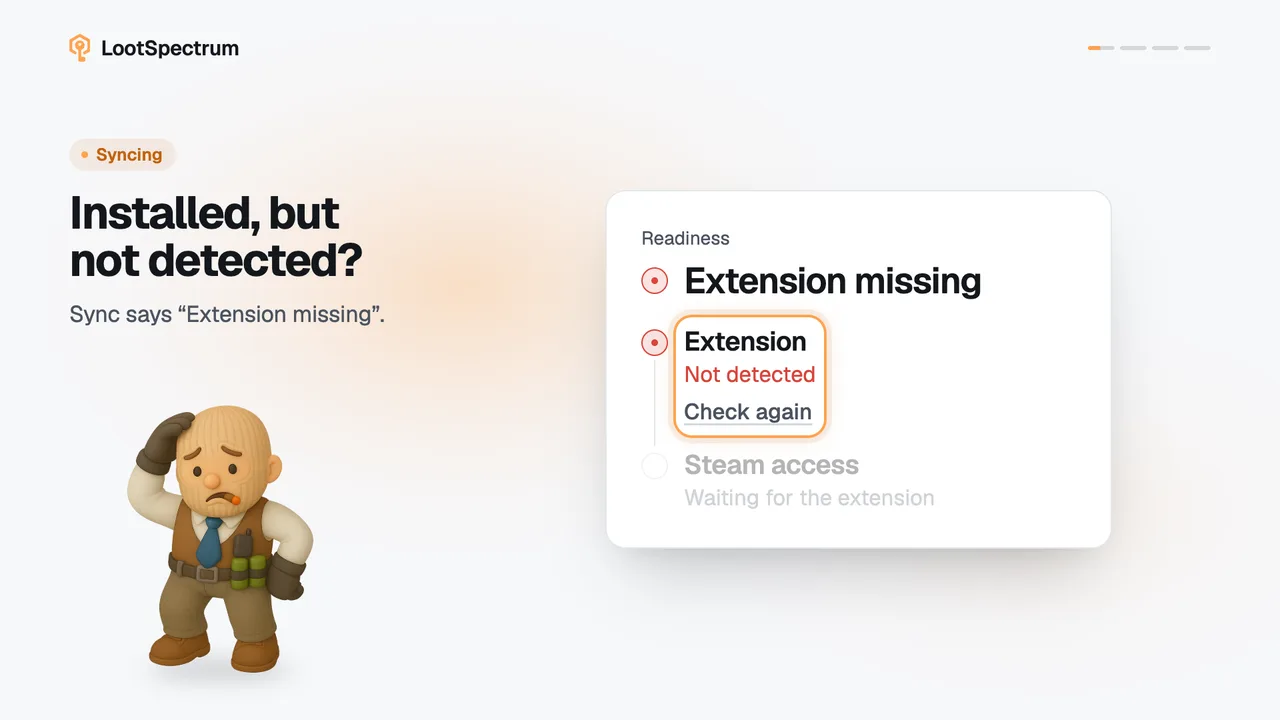
- Go back to the Sync page. In the Readiness list, Extension now reads “Connected” with its version.
- If it still says “Extension missing”, reload the page and click “Already installed? Look again”.
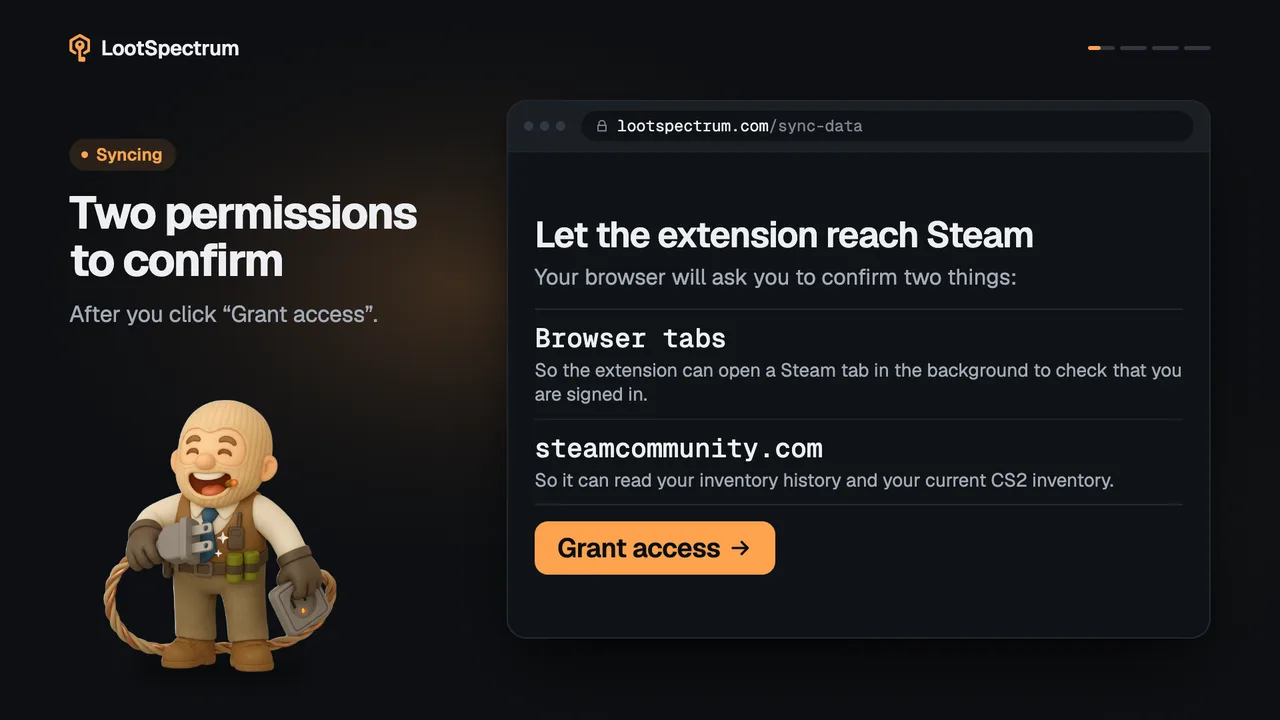
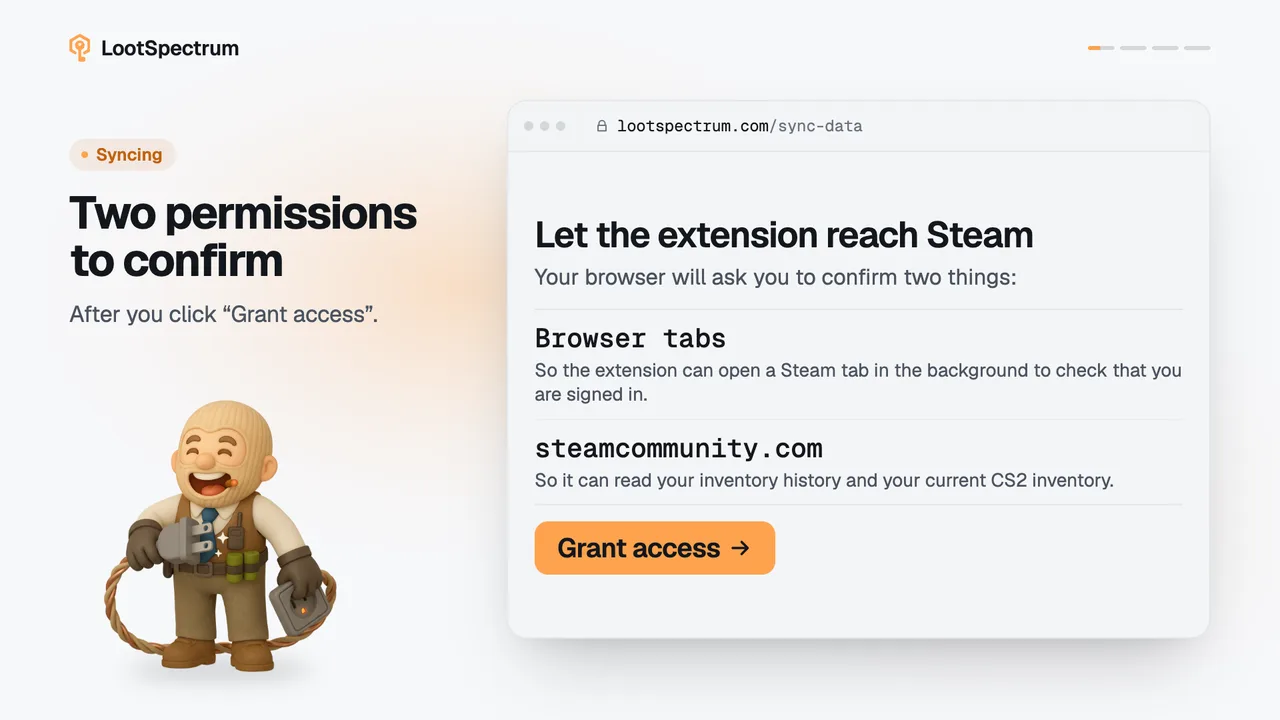
- Next, the Readiness list shows Steam access as “Needs your approval”; continue with the permission step.
Good to know
- Before you start you need an account and a desktop browser; the stores offer the extension for desktop browsers.
- In the stores the extension is listed as “CS2 Case Opening Stats”.
- Brave, Edge and other Chromium browsers use the Chrome extension.
- The Sync page checks for the extension when it loads, so a Sync tab that was open before the install may need a reload.
- Below version 2.1.0 the extension can only upload what it already cached (“Upload cached events”). The Steam check, the permission step, full sync, catch-up, custom range, snapshots and Live session need 2.1.0 or newer.
- The Sync page never uses the word “outdated”. For an older extension it reads “Older extension connected” and “Cached sync only”, and the Readiness list shows “Connected · v… · update required”.
- There is no “Check again” link in that state: update with “Update in Chrome” or “Update in Firefox”, then reload the Sync page.
The site says my extension is outdated. What now?
The Sync page does not say “outdated”. If your extension is older than version 2.1.0, it shows “Older extension connected” with the label “Cached sync only”, and the Extension row in the Readiness list reads “Connected · v… · update required”.
An older extension can only upload what it already cached, with “Upload cached events”. Click “Update in Chrome” or “Update in Firefox”, update it in the store, then reload the Sync page. If it then says “Permission needed”, continue with the permission step.
Transcript
- 0:00Pick your browser's store. Brave and Edge use Chrome's.
- 0:03Back on Sync: Connected. Not yet? Reload the page.
- 0:06Next: allow Steam access. Then “Ready to sync” appears.