What is an event, and how do I filter the Activity list?
0:11 · no sound
An event is one entry from your Steam inventory history, such as a case opening, a trade-up or a drop. On Activity each event is one row, grouped by day, and the tabs above the list filter it by kind.
Before you start
- Your history synced at least once: How do I run my first full sync?
Step by step
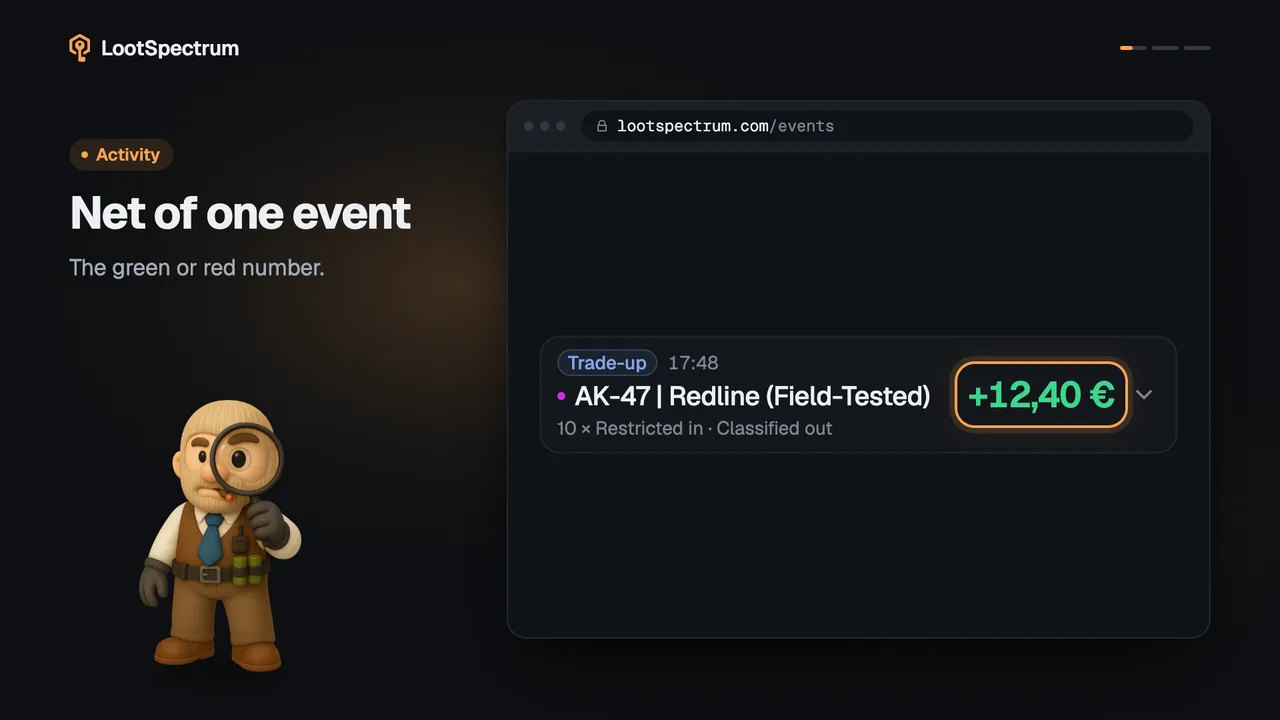
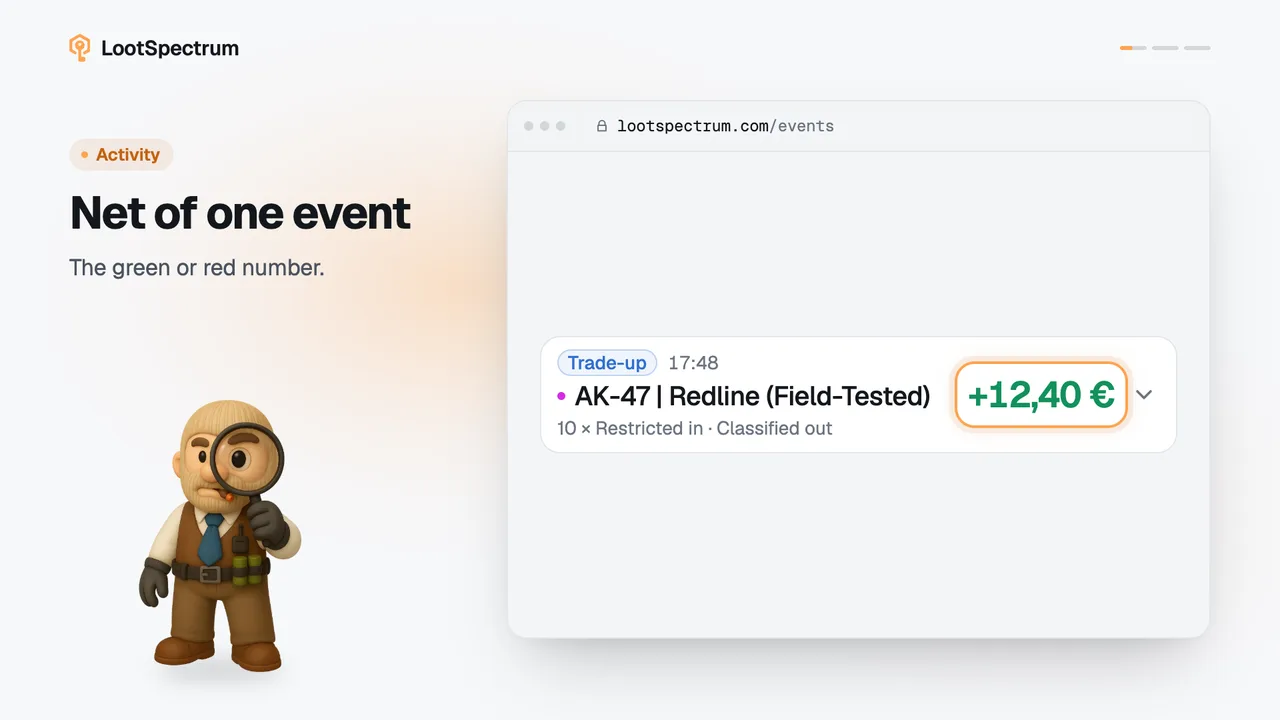
- Open Activity. Each row is one event from your Steam inventory history, grouped by day, with its time, a picture, a kind badge and the item.
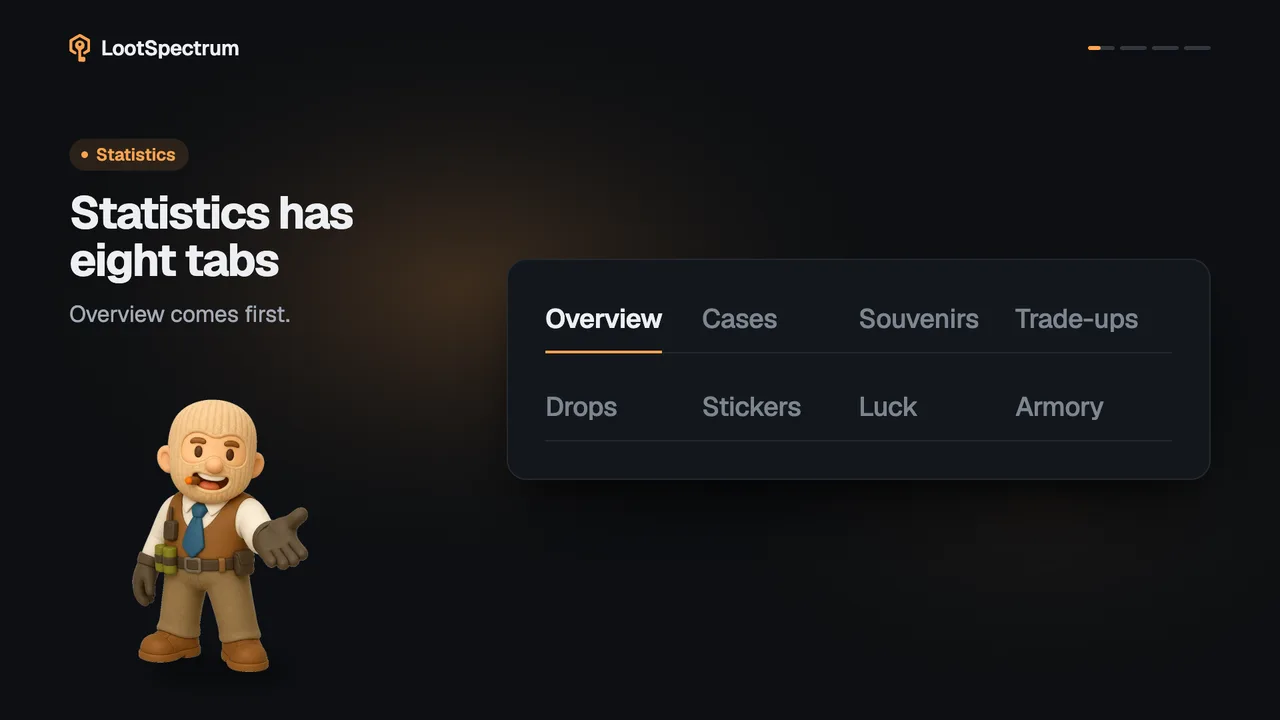
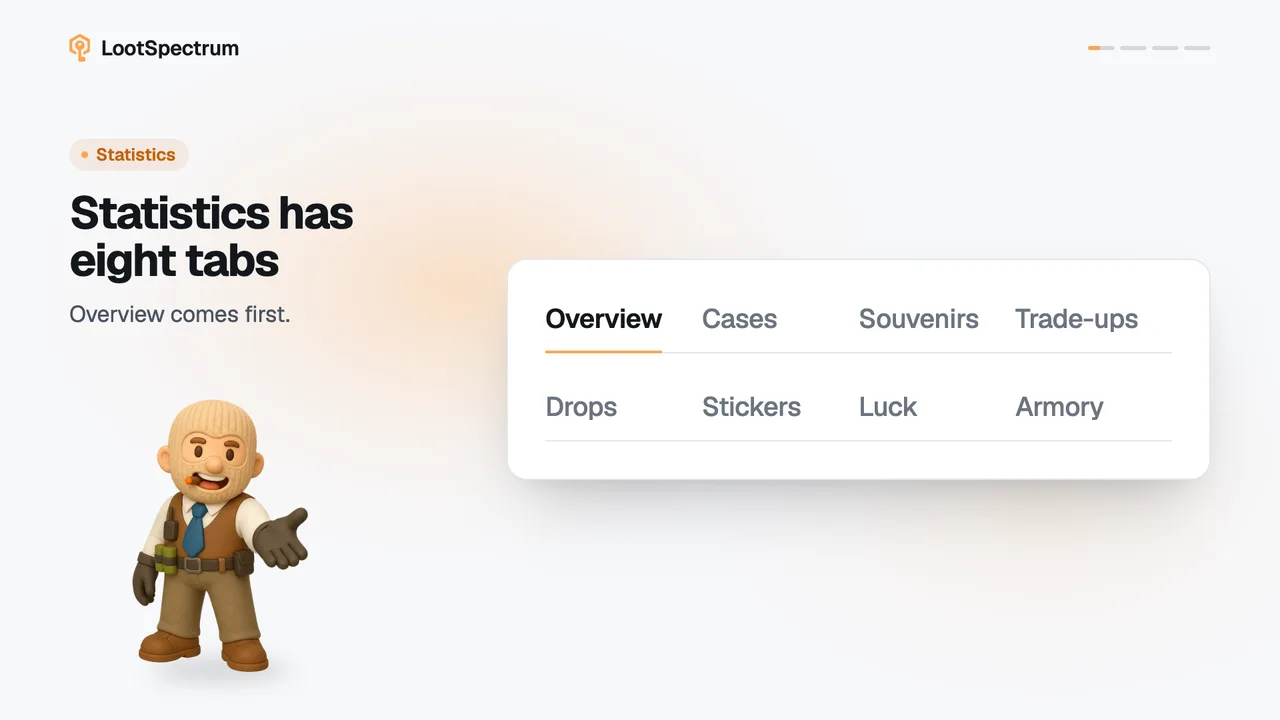
- Use the tabs above the list to filter by kind: “All”, “Openings”, “Trade-ups”, “Drops”, “Armory”, “Market”, “Storage” and “Other”.
- Click “Openings” to see only your case, souvenir package and sticker capsule openings, or “Trade-ups” to see only your contracts.
- A row with more than one item has an arrow on its right. Click it to open the row.
- The opened row lists what you “Gained” and what you “Lost”, one line per item.
Good to know
- What each tab holds: Openings are cases, souvenir packages and sticker capsules. Drops are weekly drops and tournament drops. Armory is redeems, missions and the arms dealer. Market is purchases, trades and listings. Storage is moves into and out of storage units. Other is stickers, graffiti, name tags and similar.
- Only rows with more than one item have the arrow.
- Badges differ slightly from the tab names: a trade-up reads “Trade-up”, a purchase reads “Market” and a mission reward reads “Mission”.
- The number above the list, for example “1,284 events”, counts the events that match the current tab and filters.
- The page is empty until you have synced. With nothing to show it reads “No events match these filters” and offers “Sync your inventory”.
- Values on a row and “Export CSV” are Supporter features; without Supporter the value shows as “—”.
- Item pages link here with the item's name already in the search box.
How do I find every event for one skin?
Type the item's name in “Search items…” above the list. The search matches the names of the items you gained and lost, so a case name finds its openings and a skin name finds the trade-up that used it. The list updates a moment after you stop typing.
Narrow it with “Time range” (All time, 7 days, 30 days, 90 days or 1 year) and “Sort order” (Newest first or Oldest first). The search works inside every tab, so you can combine it with “Trade-ups” or “Openings”.
Supporters also get “Minimum value”, which hides events whose net result is small; it is hidden on a free account.
Transcript
- 0:00One row, one Steam event. Grouped by day.
- 0:03Tabs filter by kind. Openings, Trade-ups, Drops and more.
- 0:06Open a row. See what you gained and lost.