How do I export my history to a spreadsheet?
0:14 · no soundSupporter
Click “Export CSV” at the top right of Activity, wait while it is generated, then click “Download CSV”. The file holds your complete history, and you get one new export a month.
Before you start
- A Supporter plan: How do I become a Supporter?
- Your history synced at least once: How do I run my first full sync?
Step by step
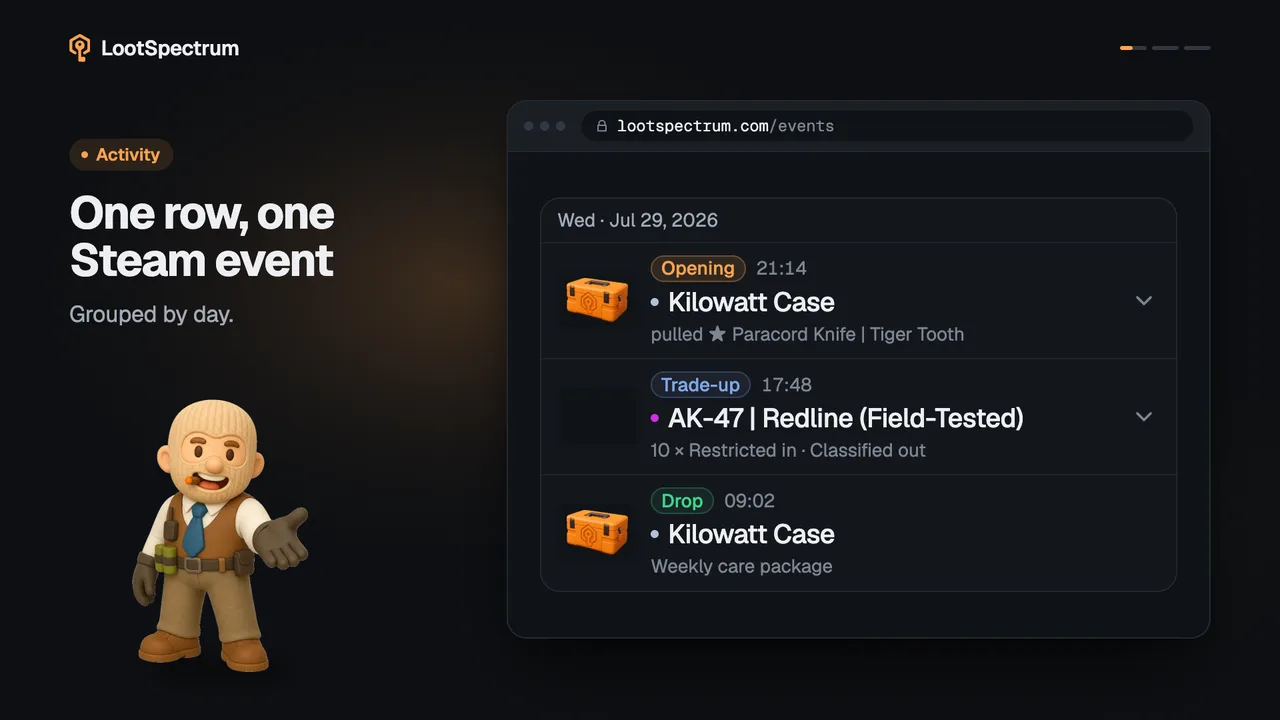
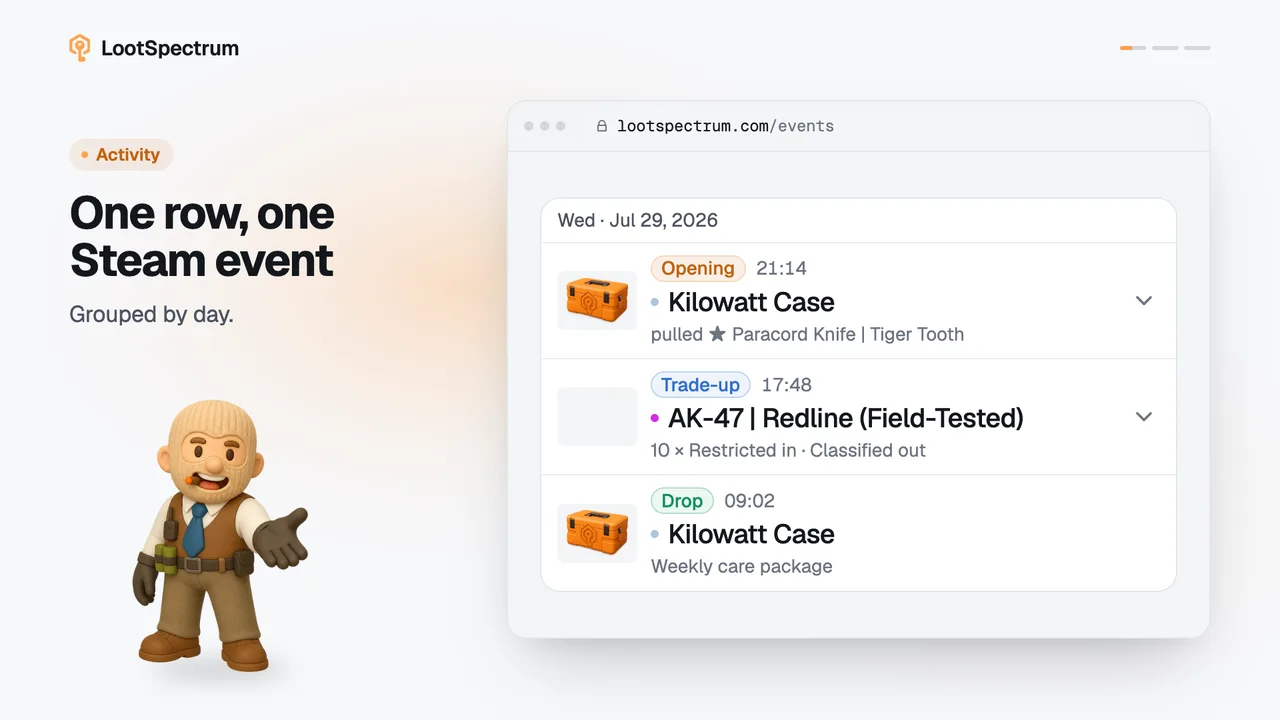
- Open Activity and click “Export CSV” at the top right, next to the event count.
- Wait while the button reads “Generating CSV…”; the export runs in the background, so you can leave the page.
- When the details line shows “Generated” with a date, click “Download CSV” to save the file.
- Open the file in Excel, Google Sheets or any spreadsheet program.
- Come back on the 1st of the next month (UTC) to make a new export: “Generate new” then appears beside “Download CSV”.
Good to know
- The export needs Supporter; without it the “Export CSV” button shows a lock, and pressing it explains the plan.
- There is nothing to export before a sync, so run a sync first.
- The export is your complete, unfiltered history, one row per item per event; the tabs, search and time range on the Activity page do not change it.
- You get one export per calendar month in UTC; the next one unlocks on the 1st of the following month.
- A failed export does not use up the month; “Retry export” starts it again.
- A finished file can be downloaded for 30 days, after which it has expired and you generate a new one when the month allows.
- The file holds at most 100,000 rows; if that limit is reached, the details line says “row limit reached”.
- All amounts are in euros, whatever your display currency.
- The columns are time, event type, direction, quantity, item name, wear, float, pattern, quality, rarity and type, then the value at the time and today (each per unit and in total) and the price source.
- Cells that begin with =, +, - or @ get a leading apostrophe, so a spreadsheet does not run them as formulas.
Transcript
- 0:00Click “Export CSV” Top right of Activity.
- 0:03Runs in the background. You can leave the page.
- 0:06Then click “Download CSV” Your whole history.
- 0:09One export a month. Next on the 1st, UTC.