How do I change the currency?
0:11 · no sound
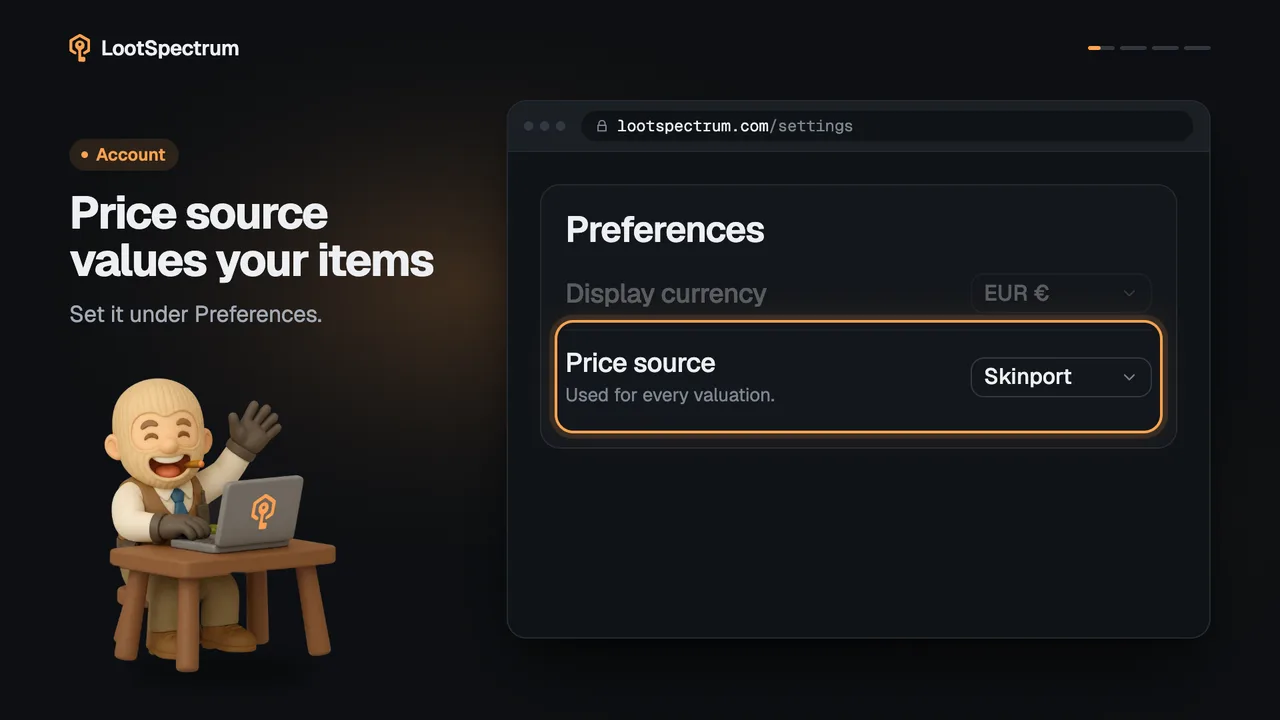
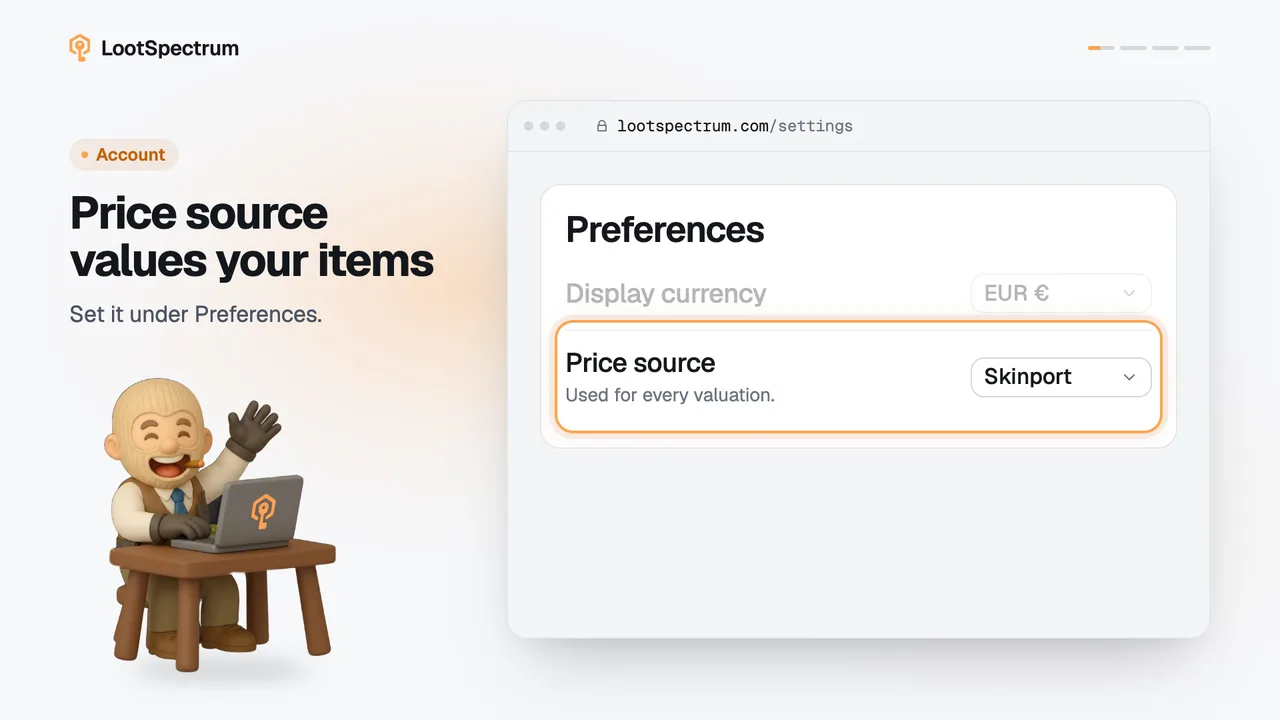
Open Settings and choose EUR, USD or GBP under Preferences, Display currency. It saves by itself and most pages follow it: inventory, activity, statistics, watchlist and loadouts. Item pages stay in euros.
Before you start
- A LootSpectrum account: How do I create an account, and can I sign in with Steam?
Step by step
- Open the account menu at the top right and choose “Settings”. On a phone, tap More and then the gear icon.
- In the “Preferences” section, find “Display currency”.
- Choose “EUR €”, “USD $” or “GBP £”.
- The change is saved at once; “Saved” appears at the top right of the Preferences section.
Good to know
- The currency code in the header, for example “EUR”, is itself a link to Settings; it is hidden on small screens.
- Inventory, Activity, Statistics, Watchlist, Loadout, Collections and the “You own” row on item pages follow your currency.
- Item pages, case contents and Compare always show euros.
- Prices are stored in euros and converted at the current exchange rate, so USD and GBP values are approximate.
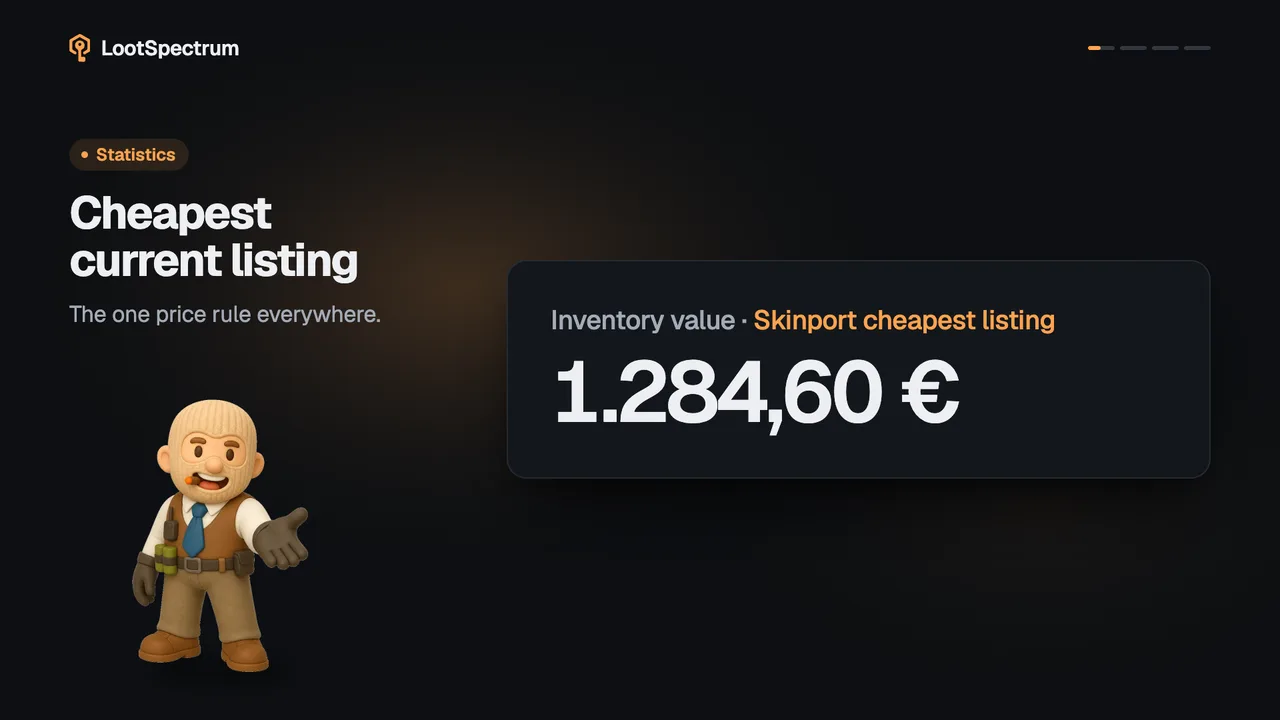
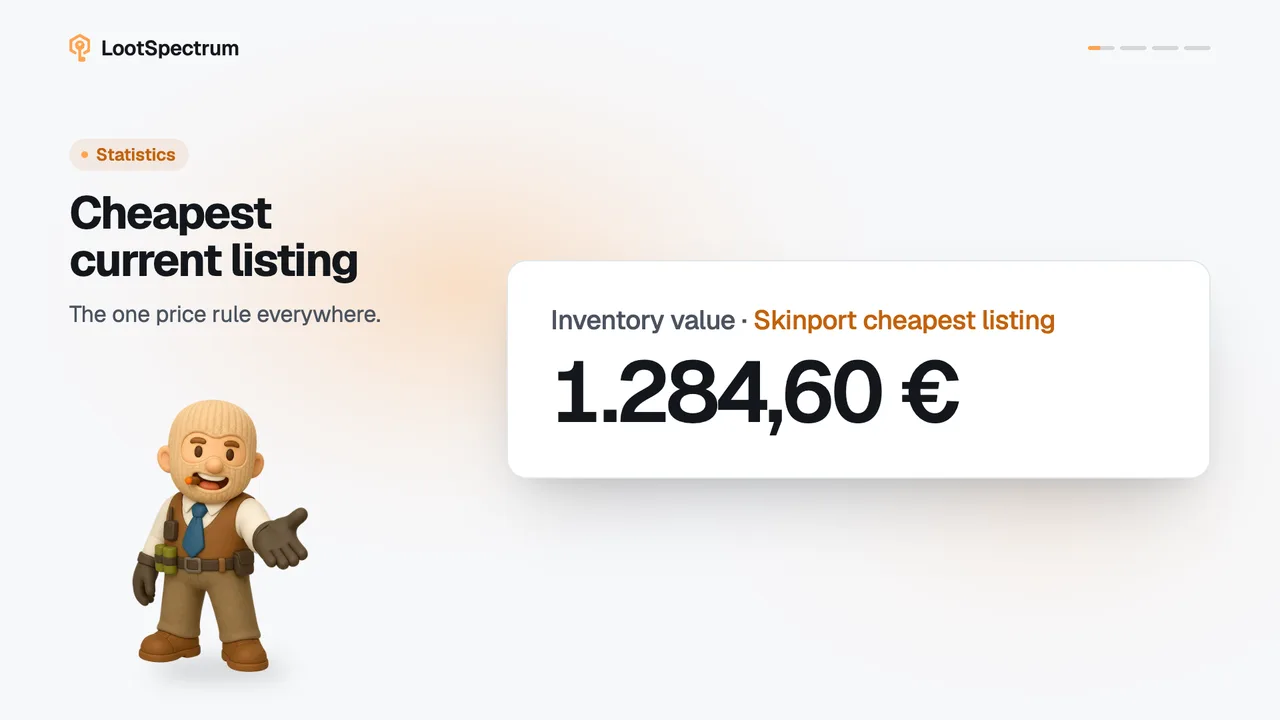
- The number format changes with the currency, for example 1.284,60 € in euros and $1,284.60 in dollars.
- Settings is only open to signed-in users; signed-out visitors are sent to sign-in first.
Transcript
- 0:00Change currency in Settings. Account menu, then Settings.
- 0:03Choose EUR, USD or GBP. Display currency, under Preferences.
- 0:06Item pages stay in euros. Most other pages follow.