How do I find my way around?
0:14 · no sound
LootSpectrum has two modes, Analysis and Market, switched with the control next to the logo. Each mode has its own tabs; on a phone the same pages are in the bottom bar and its More sheet.
Before you start
- A LootSpectrum account: How do I create an account, and can I sign in with Steam?
Step by step
- Use the switch next to the logo to change between “Analysis” and “Market”.
- “Analysis” has the tabs “Statistics”, “Activity” and “Sync”.
- “Market” has the tabs “Inventory”, “Compare”, “Watchlist”, “Collections” and “Loadout”.
- On a phone, use the bar at the bottom: “Stats”, “Inventory”, “Watchlist” and “More”.
- Tap “More” to open “Activity”, “Sync”, “Compare”, “Collections”, “Loadout”, “Cases” and “Help”.
Good to know
- The switch and the tabs show only on wide screens; on phones and small tablets everything is reached through the bottom bar.
- The More sheet holds Activity, Sync, Compare, Collections, Loadout, Cases and Help.
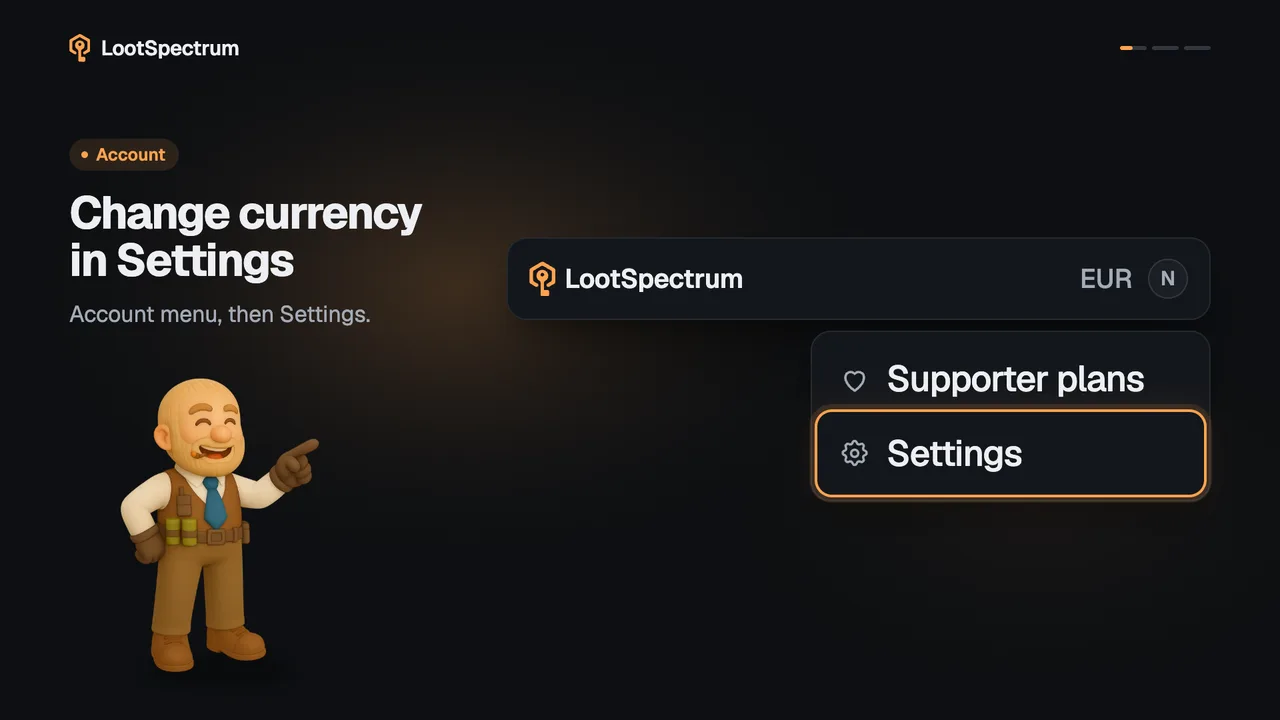
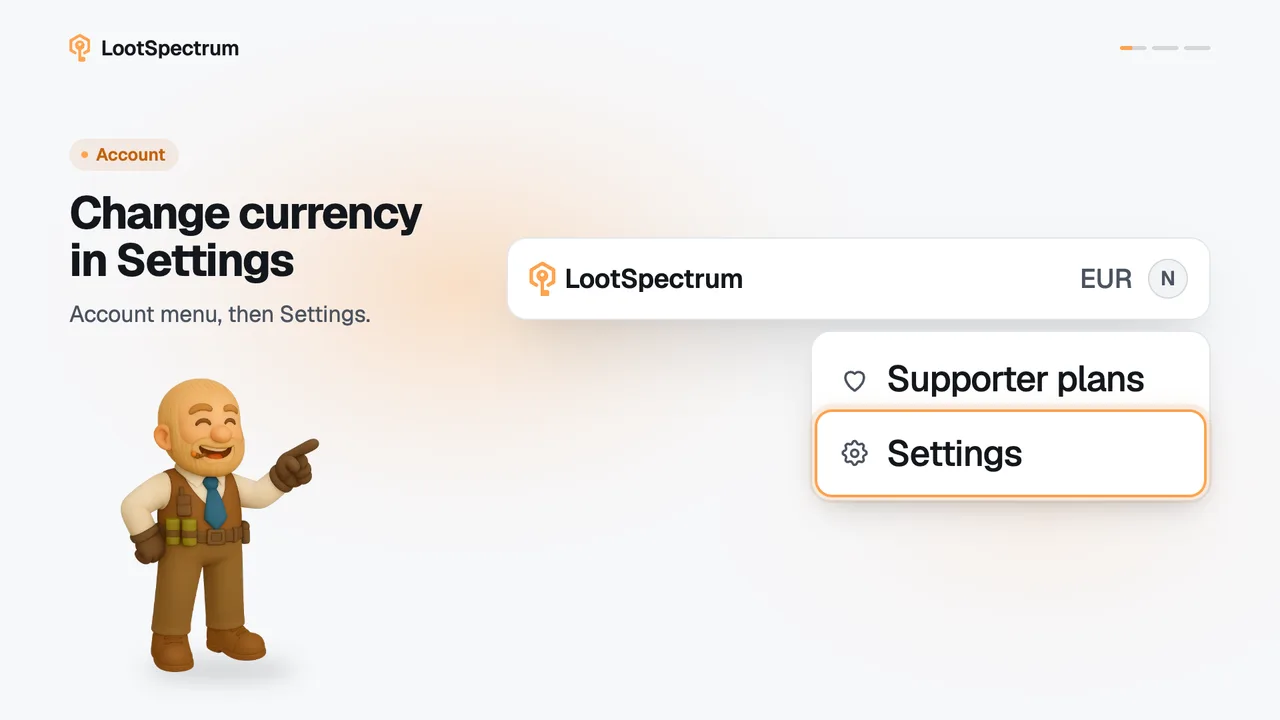
- Settings is in the account menu at the top right, and behind the gear icon in the More sheet on a phone.
- Press Cmd+K or Ctrl+K to search the catalogue and jump to a page; the search topic explains it.
- Signed-out visitors see a different header, with the landing links and the Catalog menu.
How do I switch between dark and light mode?
Click the sun or moon icon in the header. On a phone, open “More” and use the sun and moon switch at the bottom right of the sheet.
Until you choose, the site follows your device's light or dark setting. Your choice is saved in this browser only, as a cookie for one year, not in your account, so it does not follow you to another browser or device.
Transcript
- 0:00Two modes, one switch. It sits next to the logo.
- 0:03Analysis. Statistics, Activity and Sync.
- 0:06Market. Inventory, Compare, Watchlist, Collections and Loadout.
- 0:09On a phone: the bottom bar. More opens the rest.