How do I get an inventory snapshot automatically every day?
0:14 · no soundExtension
Keep “Daily inventory snapshot” on in Settings under Extension, then click “Connect” on the “Background sync” row so your browser uploads each day's snapshot by itself.
Before you start
- The extension installed and connected: How do I install the extension and connect it?
- Steam access granted to the extension: What permissions does the extension ask for, and why?
- Logged in to Steam in this browser: Do I need to be logged into Steam, and how do I check?
Step by step
- Open Settings and find the “Extension” card; the “Status” row should read “Installed”.
- Keep the “Daily inventory snapshot” toggle switched on, so the extension captures one snapshot a day.
- On the “Background sync” row, click “Connect” so this browser can upload snapshots without opening LootSpectrum.
- When the row reads “This browser uploads by itself.” with a last upload time, you are set; “Disconnect” stops it again.
Good to know
- The extension checks once every 24 hours, takes today's snapshot if there is none, then uploads anything it has stored.
- It needs the browser running, you signed in to Steam in that browser, and the Steam permission granted; a failed attempt is not retried the same day.
- The rhythm is 24 hours counted from when the extension was installed, not a fixed time of day.
- Without “Connect” the snapshot is still taken, but it is uploaded the next time you visit LootSpectrum.
- The “Background sync” row needs extension 2.2.0 or newer; older builds do not show it.
- “Connect here” appears when this browser is connected to a different account, and “Last upload failed” shows the reason when an upload did not go through.
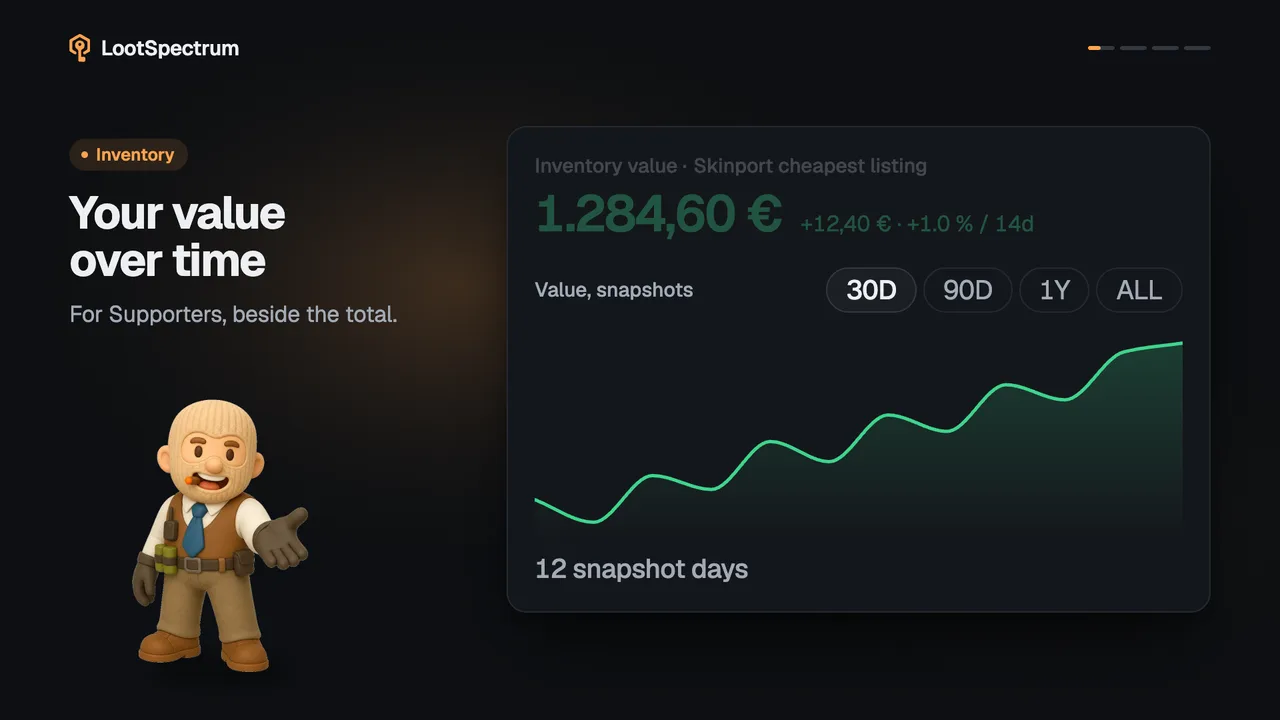
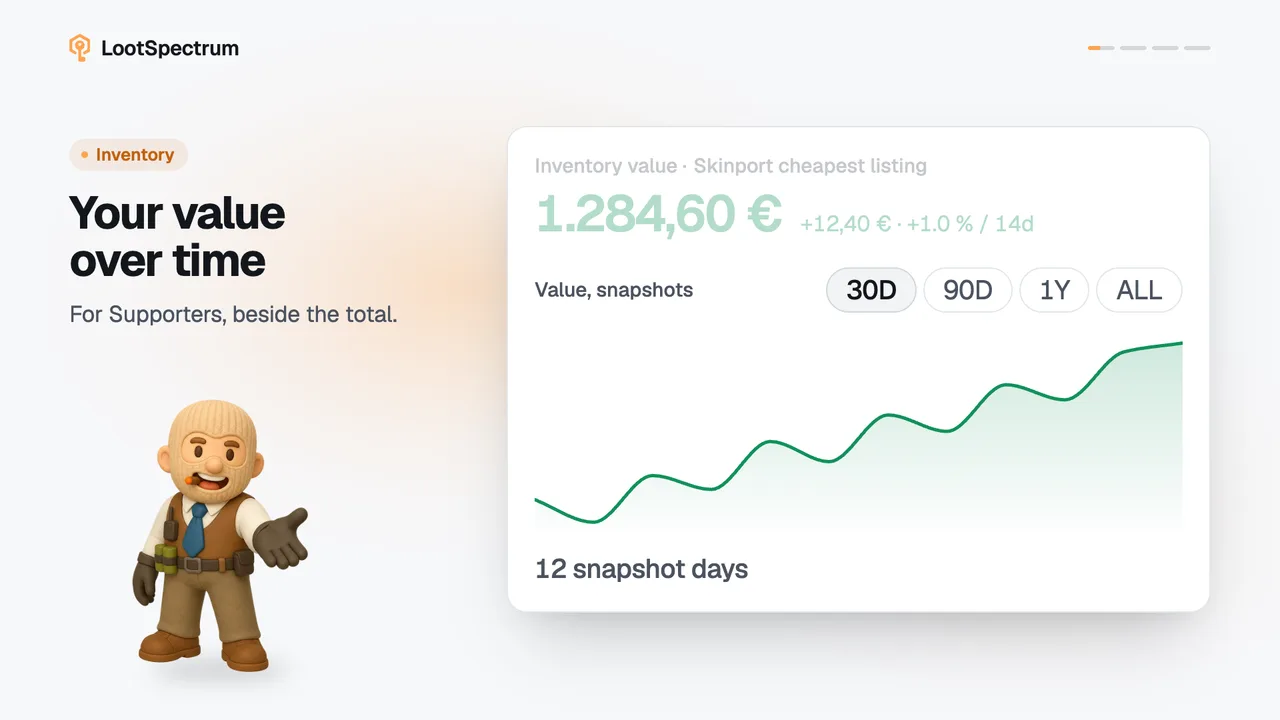
- Snapshots are free; the value-over-time chart that grows from them is a Supporter figure, see the plans page.
- The extension popup has a “Background sync” row too, which connects or disconnects this browser in the same way.
How do I disconnect a browser or remove an old one?
In Settings under Extension, click “Disconnect” on the “Background sync” row to stop this browser from uploading. Every connected browser is listed below that row; click “Remove” on another browser's row to cut that one off.
A removed browser keeps its stored snapshots and can be connected again, and snapshots already uploaded stay. At most 10 browsers can be connected at once; an eleventh replaces the oldest. The list is only visible from a browser that has the extension.
What do the buttons in the extension popup do?
“Scan inventory history” opens your Steam inventory history page, and “Open dashboard” opens LootSpectrum.
The “Background sync” row connects or disconnects this browser, the same as the row in Settings.
Transcript
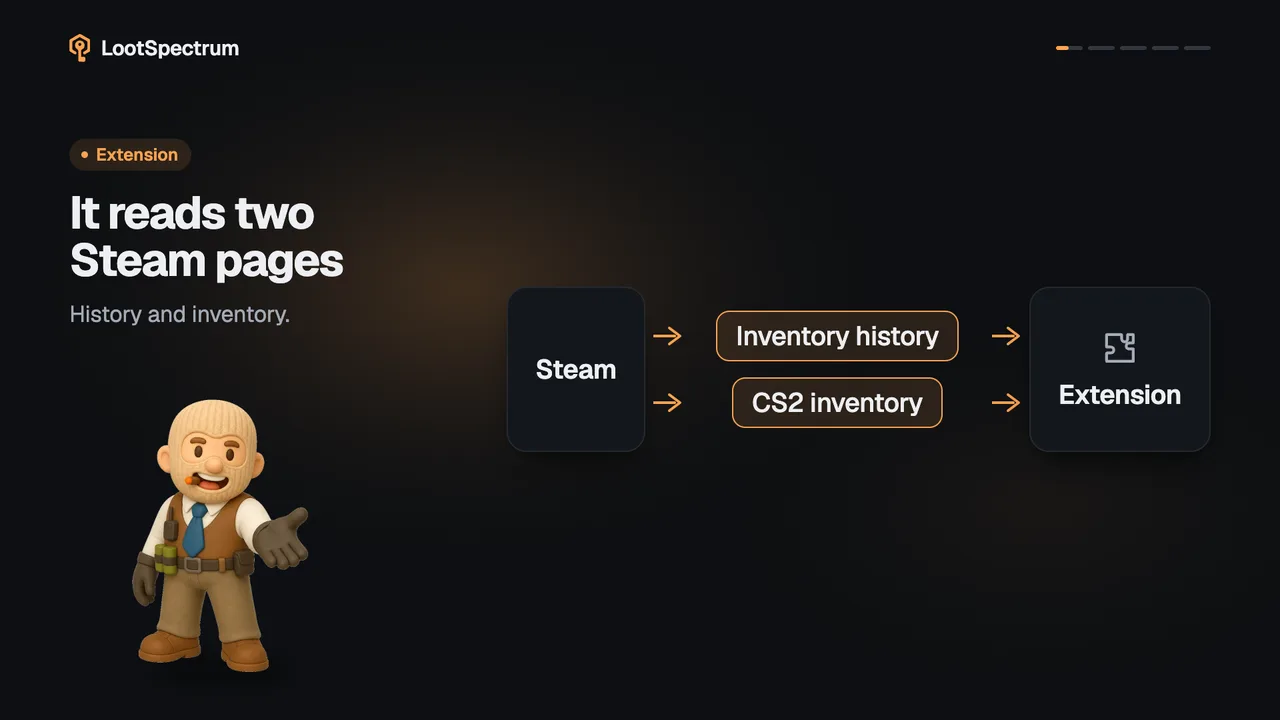
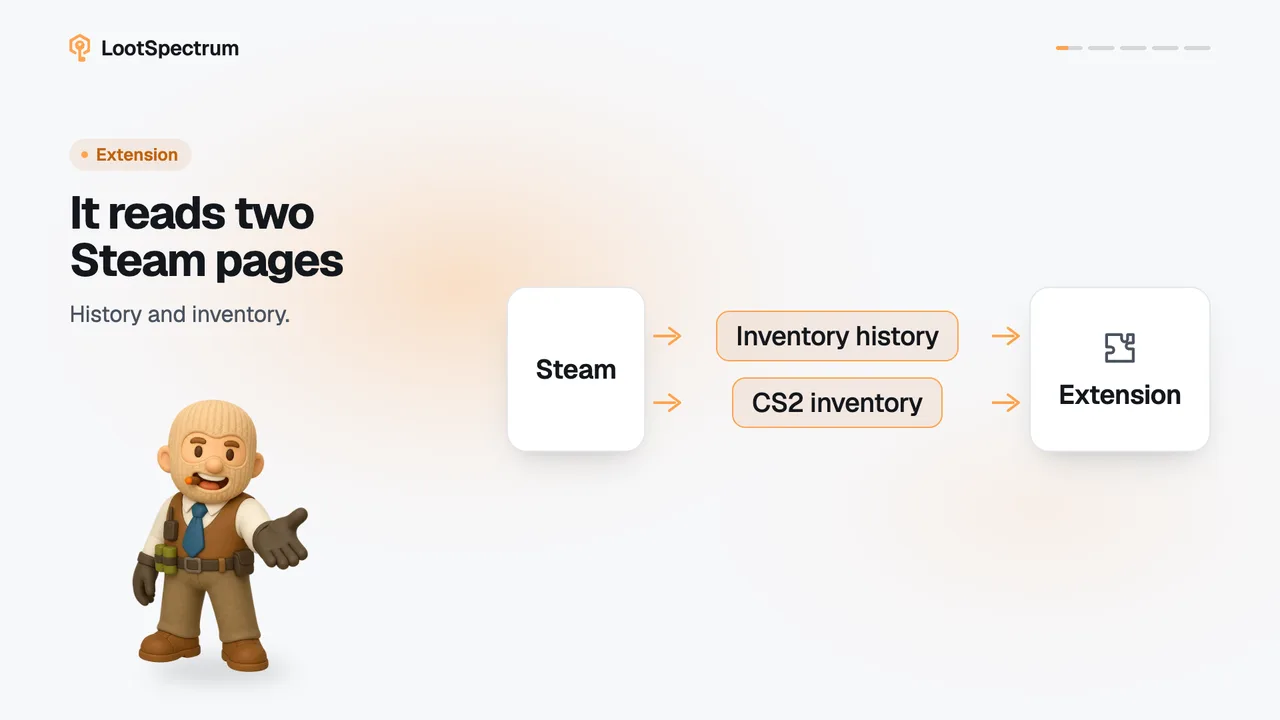
- 0:00Daily snapshots, hands-free. Settings, Extension.
- 0:03Keep the daily toggle on. One snapshot a day.
- 0:06Click “Connect” Uploads without opening the site.
- 0:09It uploads by itself. While your browser is open.