How do I track openings live while I play?
0:14 · no soundExtensionDesktop only
Open Live session from the Sync page and click “Start session”. New openings appear in the feed within about 30 seconds and are saved automatically, as long as the tab stays visible.
Before you start
- The extension installed and connected: How do I install the extension and connect it?
- Steam access granted to the extension: What permissions does the extension ask for, and why?
- Logged in to Steam in this browser: Do I need to be logged into Steam, and how do I check?
Step by step
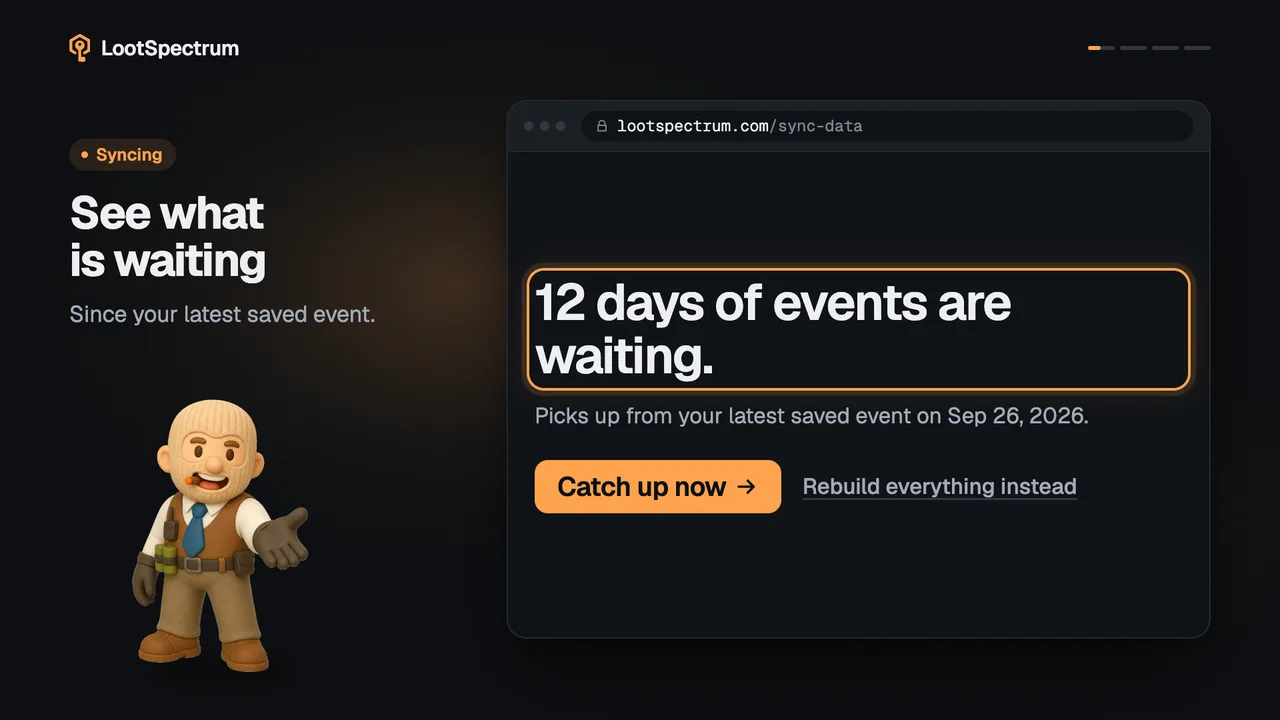
- Open the Sync page and find the Live session row, then click “Track it live →”.
- Click “Start session”. The page checks your Steam history every 30 seconds and saves new events as they land.
- Open your cases. Each new opening shows up in the feed with its item and time; the tiles “Duration”, “Events captured”, “Synced” and “Last check” count along.
- Keep the Live session tab visible while you play, because the checks pause when it is hidden.
- Click “End session” when you are done. “Start new session” begins another.
Good to know
- Live session has no menu entry; reach it from the Sync page through “Track it live →”.
- No earlier sync is needed: a session saves what it sees.
- The first event can take a moment, because Steam takes a while to list new history. Until then the page says it is waiting for your first event.
- Each check also looks back five minutes before the start, so an opening from just before you pressed “Start session” can appear.
- A hidden or minimised tab skips its checks and resumes when it is visible again. When you play full screen, keep the tab on a second monitor or in its own window.
- Events are saved as they are found. If saving fails, the page says so and the events are retried on your next sync.
- Live tracking needs extension 2.1.0 or newer. An older extension can still upload cached events from the Sync page, but the Live session page then shows update buttons instead of “Start session”.
- If the extension does not respond, the page says so and offers “Go to Sync”. A failed check shows the extension's error above the feed.
- The feed keeps the 100 newest events.
Transcript
- 0:00Watch openings arrive live. From the Sync page.
- 0:03Click “Start session” It checks every 30 seconds.
- 0:06New openings appear here. And are saved automatically.
- 0:09Keep this tab visible. Hidden, the checks pause.