What is the difference between the four sync modes?
0:17 · no soundExtension
The modes differ in how much they read. Full sync reads your whole Steam history, Catch-up only what is new, Quick sync only what the extension cached, and Custom range one window of dates.
Before you start
- Your history synced at least once: How do I run my first full sync?
- The extension installed and connected: How do I install the extension and connect it?
- Steam access granted to the extension: What permissions does the extension ask for, and why?
Step by step
- Full sync (the “Full history” row, “Run full sync →”, or “Start full sync” on a first sync) reads your Steam history from today back to your first event; use it the first time or to rebuild.
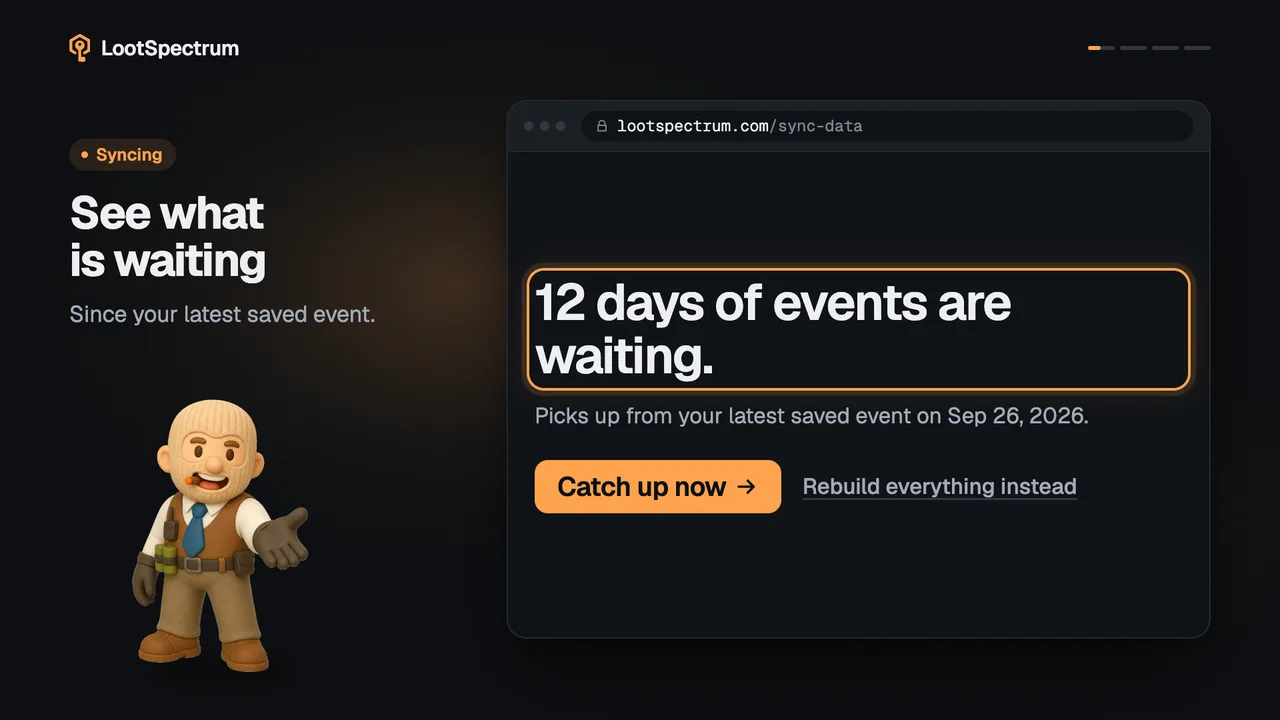
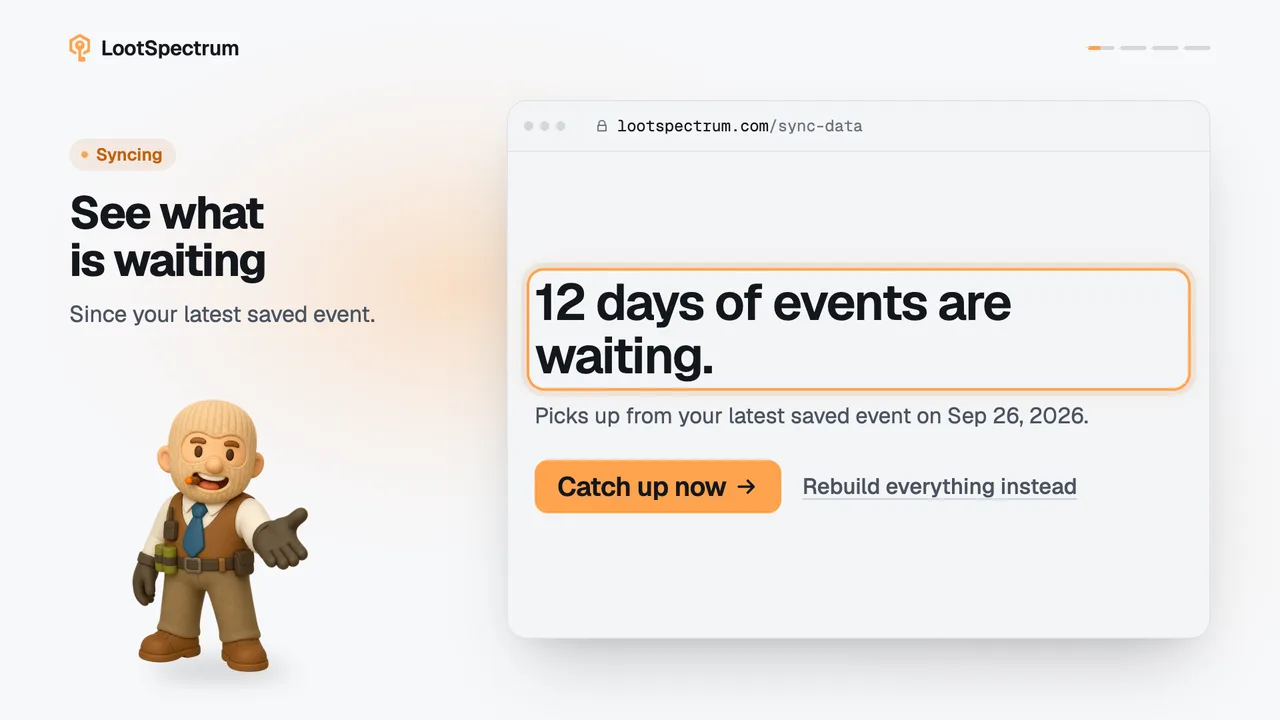
- Catch-up (“Catch up now”) reads from today back to your latest saved event, so only new events are added; use it for regular updates.
- Quick sync (“Run”, under “Quick sync or custom range”) uploads only what the extension already cached in this browser; it is instant but misses anything the extension has not read.
- Custom range (“Quick sync or custom range”, pick two dates, then “Fetch”) reads one window of dates; use it to fill a known gap.
Good to know
- The main button on the Sync page reads “Start full sync”, “Catch up now” or “Check for new events”, depending on whether you have stored history and whether anything is waiting.
- Catch-up exists only when you already have stored history; without it the main button starts a full sync.
- Quick sync needs no Steam access and sends no request to Steam, but it misses anything the extension has not read. Full sync, Catch-up and Custom range need the extension connected and Steam access granted.
- No mode deletes anything; events you already have are skipped.
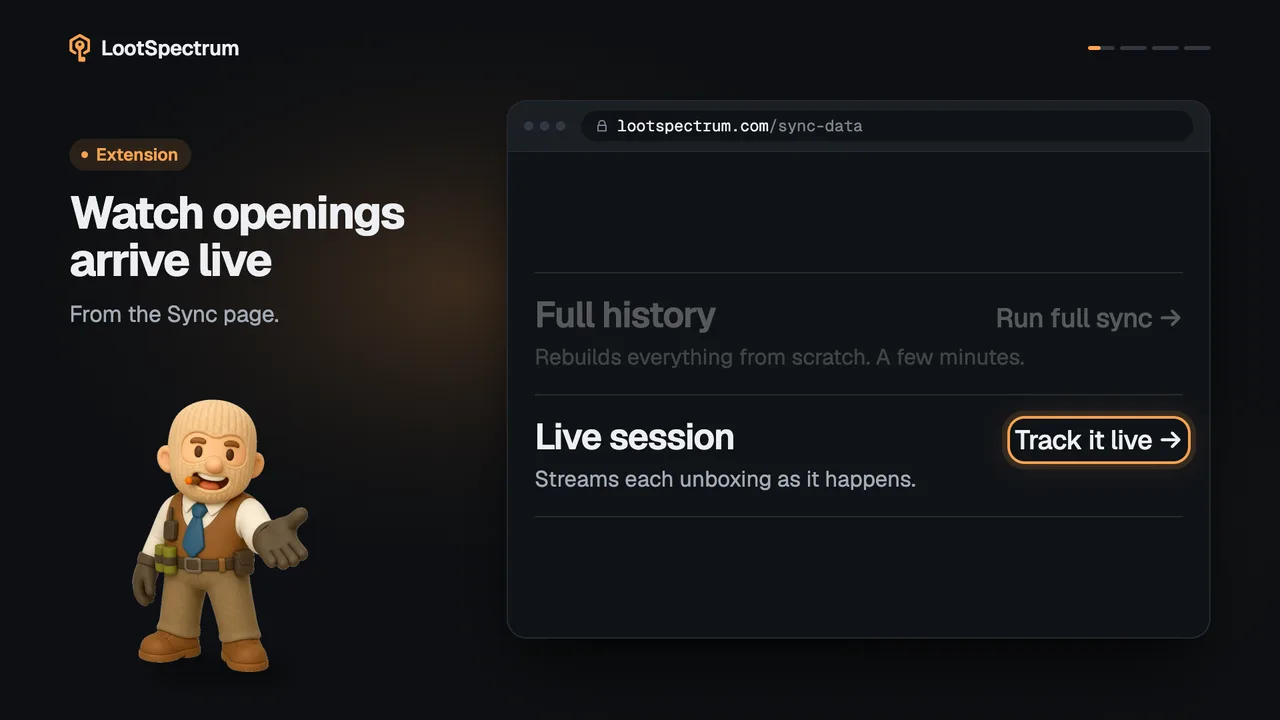
- “Live session” on the Sync page is a fifth way that follows openings as they happen; it has its own topic.
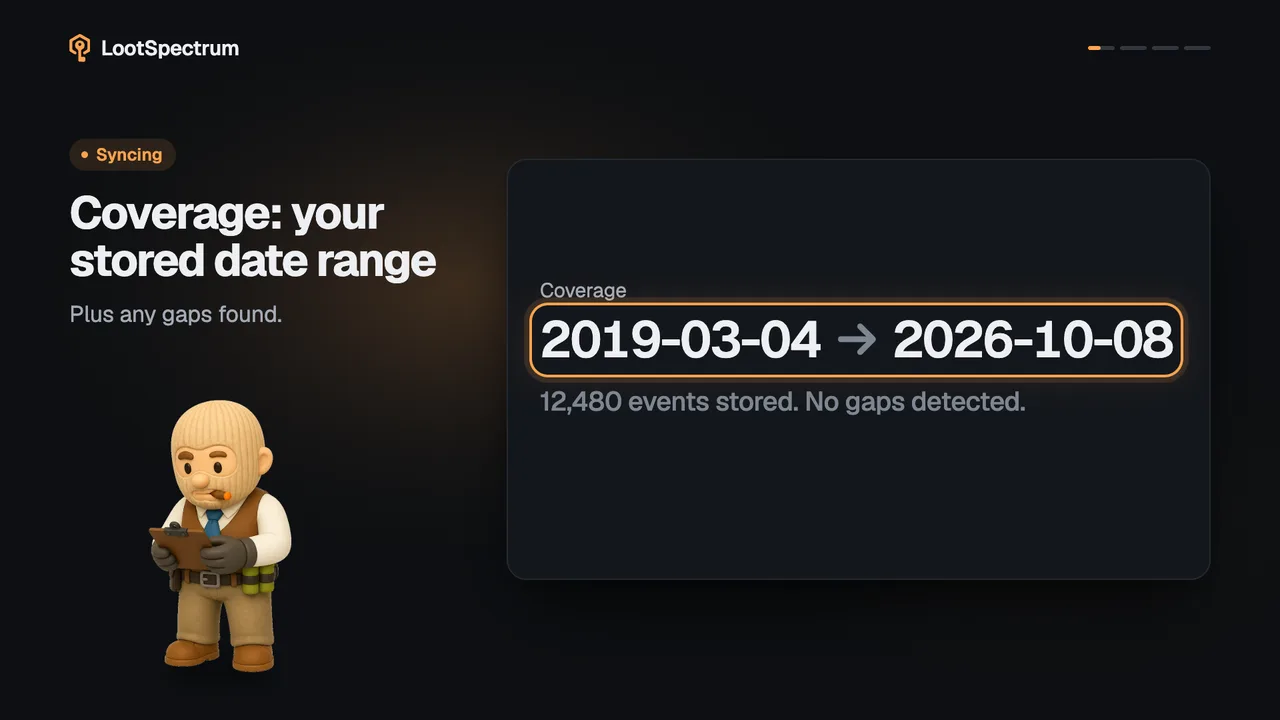
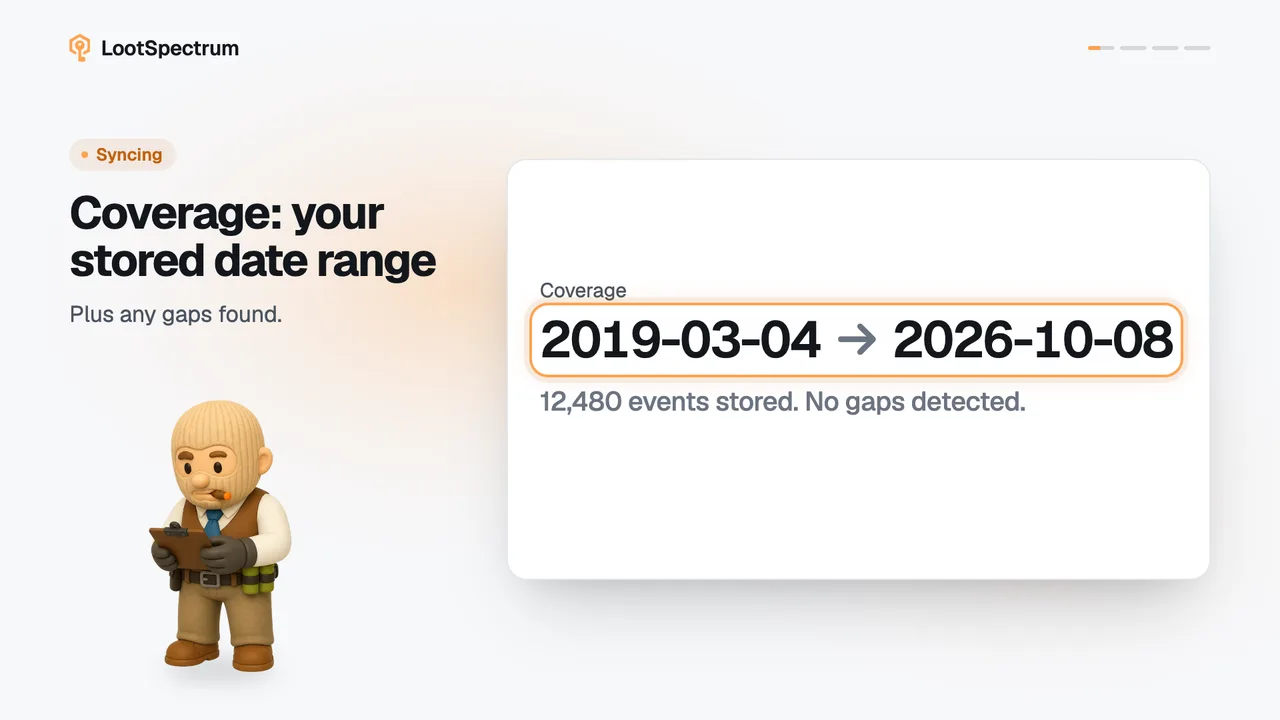
- History that arrived only through Quick sync shows in Coverage as “Coverage has not been verified yet”.
Can I sync from the Steam inventory history page?
Yes. The extension adds a LootSpectrum panel to your Steam inventory history page (steamcommunity.com/my/inventoryhistory) while you are signed in to Steam. Click “Load stats” in it and it reads your history into this browser. This route needs neither of the two extension permissions.
When the panel says “Complete”, “Upload now” appears, but it only opens the Sync page. There, open “Quick sync or custom range” and click “Run” under “Quick sync” to send what was read. A run you stopped is not available to Quick sync. The extension popup's “Scan inventory history” opens the same Steam page.
What do Force load, Load from date, Detect history age and Restore backup do?
They are repair tools in the panel's “More options” on Steam's history page. “Detect history age” works out how far back your history goes; turn it off if reading gets stuck. “Force load” continues reading when the history looks shorter than it should; it is experimental, so use it only if you need it. “Load from date” reads backwards from a date you choose.
“Reset stats” clears the panel's copy of your history in this browser only, never your LootSpectrum account. “Restore backup” puts back the saved run shown beside it, which undoes a reset made during the same page visit.
Transcript
- 0:00Four ways to sync. How much each one reads.
- 0:03Full: your whole history. First time, or to rebuild.
- 0:06Catch-up: only what is new. Your regular update.
- 0:09Quick: only what is cached. Instant, but incomplete.
- 0:12Custom range: one window. To fill a known gap.